A call to start dreaming again…

Star Trek Enterprise
2013. When I was a teenager this looked like a magic number. It was the eighties and a golden age for science fiction. We were born at the exact right time. The 21st century was just around the corner and we would get a glimpse of all the marvel that was going to unfold in front of us. I remember my brother and I making some sandwiches just before six o’clock so we wouldn’t miss a thing of our favorite show: Star Trek! When the opening sequence came on, we left planet Earth for 45 exciting minutes. Our heroes were solving an interstellar mystery every week: a PADD in one hand, a Tricorder in the other. Violence was wrong and only used as a last resort. Phasers to stun! We loved the stories and fantasied about the new technology exposed to us. And when dad gave us our first x86, the world was at our fingertips…

And it looked very promising all through the nineties. HAL spoke to us (with a much friendlier voice) and the internet became our realm. Every geek in the technology business had some sort of Star Trek memorabilia in their office. The stories of the writers/visionaries were coming alive! Part of our gadgets today came from the imagination of someone holding a pen in their hand. The PADDs became iPads and our smartphones became the new Tricorders. After TNG we continued our journey with DS9, Voyager and Enterprise. (If you come across the DVD boxes of any of those series, don’t hesitate. Buy them and you’re in for a real treat!)

And then it stopped… almost at the same time the final episodes of this great show rolled out on our TVs…

The first decade of the 21st century was nothing like what we were dreaming of. Yes, we got some of the gadgets our heroes used to save the galaxy, but at a price. Literally. How did the Ferengi ever come up with the Rules of Acquisition? I think they found the book on earth. Every ‘new’ thing is just like the old one. I don’t care for thinner or more lightweight. (I know your wet dream is to let us buy just air someday!)

Don’t get me wrong: I’m not a synic. I just do miss my shows. I do not need another ultra-violent, incomprehensible and randomly twisted serie that is cancelled way too early. I want a good story with a wealth of imagination that makes me wonder when I’m lying in bed. Images that let me play around with new ideas and make me want to ponder on great inventions. Reaching for the stars at warp 9.7!

So this is a cry out to all science fiction writers. Please, please let us dream again. Humanity needs a new Star Trek. Desperately…

Alwaysbusy

Basic4Android: ABSYNCMenu, making an Actionbar with Submenus. Easy!


ABSYNCMenu.bas is a code module for an Actionbar with submenus completely written in Basic4Android. It’s an easy to use module you can drop into any project and with a couple of lines of code you have your own action bar with submenus!

Note: I’m aware there is an excellent actionbar library from corwin42 called AHActionBar at the B4A website, but as this ABSYNCMenu module is part of the upcoming ABSYNC Genesis tool (more on this tool in a later article!), I wanted to share this module with you.

Let’s get started!

Start a new project and import the attached module ABSYNCMenu.bas.

In the Main Activity we will add all the code needed to create and handle the action bar and menu. I’ll only cover the code needed for the actionbar in this tutorial, not the other ‘normal’ B4A code. There are some excellent tutorials in the B4A forum, check them out.

We define tree panels that are needed to build the ABSYNC Menu in the Sub Globals.
ABS_MainMenuPanel: for the transparent background over the whole activity that makes all the rest of the program darker and unclickable.
ABS_ActionBarPanel: for the the actionbar
ABS_DropdownMenuPanel: for the dropdown menu

Sub Globals
    Dim ABS_MainMenuPanel As Panel
    Dim ABS_ActionBarPanel As Panel
    Dim ABS_DropdownMenuPanel As Panel
End Sub

In the Activity_Create sub we load our initial layout file (.bal) we created in the designer. This may just be an empty form. See the project at the end of the article for more info. Then we call our BuildMenu() function where we define our action bar and menus.

Sub Activity_Create(FirstTime As Boolean)
    ' load the initial layout
    Activity.LoadLayout("1")

    ' call the function to initialize our menu
    BuildMenu
End Sub

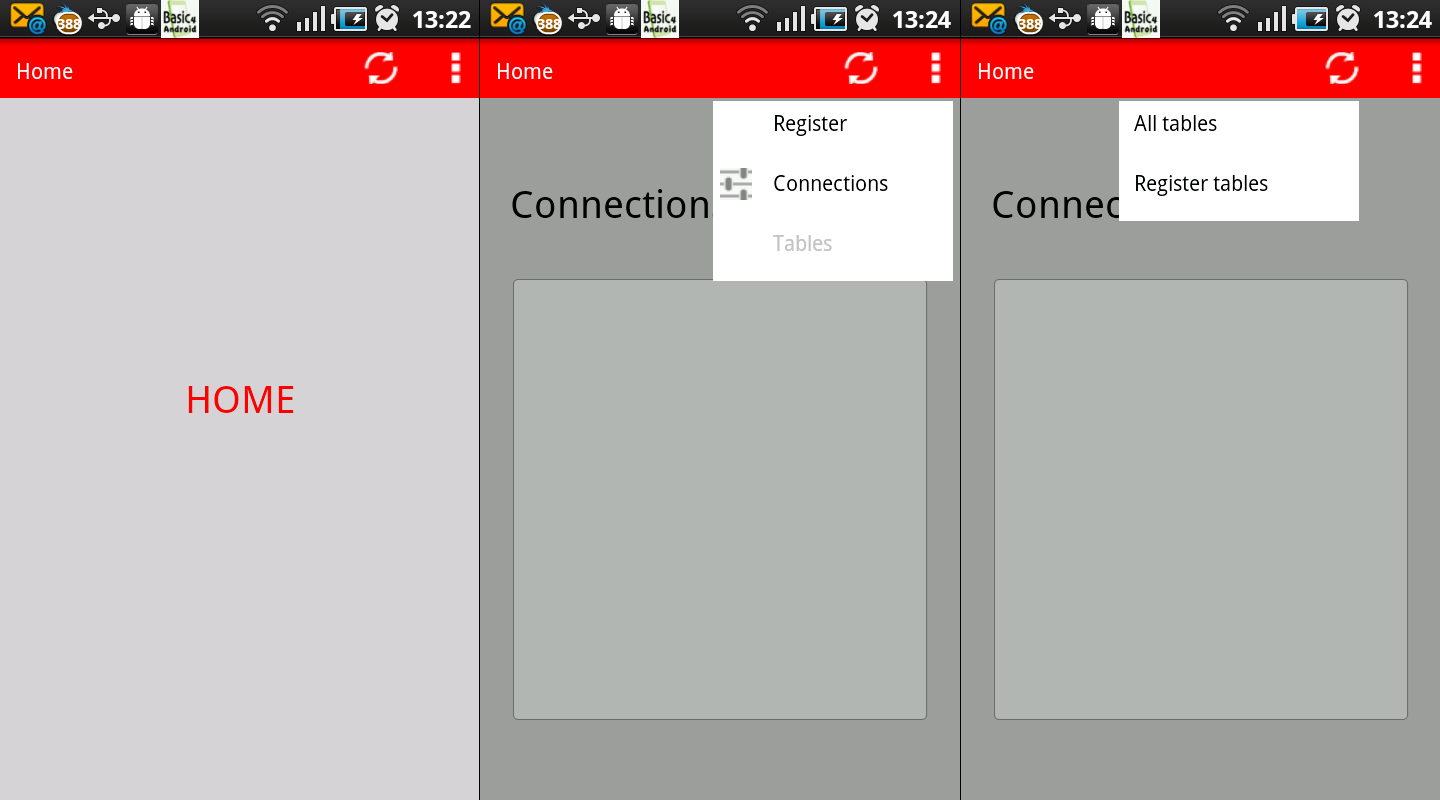
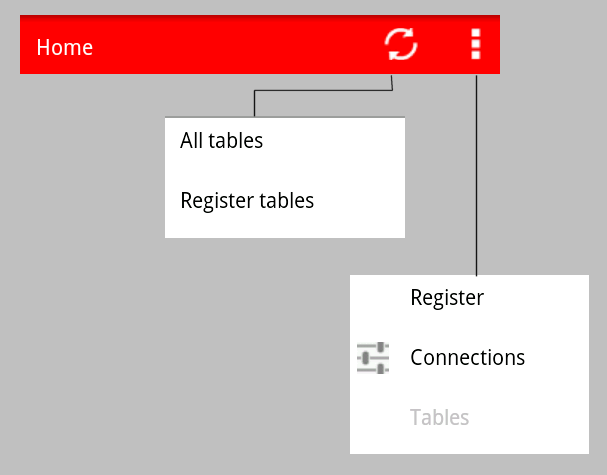
Suppose we want to create the following actionbar with submenus:

Notice some menu items need to have an icon and some of them need to be disabled.
I’ll go over every major part in the code of the BuildMenu() function to explain how it works.

Start with the ABSYNC menu definition:

ABSYNCMenu.ABSYNCMenuBegin(ABS_MainMenuPanel, ABS_ActionBarPanel, ABS_DropdownMenuPanel, "ABSYNCMenuEvent", Activity.Width, Activity.Height)

Set some properties, like the colors and height of the action bar:

ABSYNCMenu.ActionBarHeight = 40dip
ABSYNCMenu.ColorActionBar = Colors.ARGB(255,255,0,0)
ABSYNCMenu.ColorActionBarItemEnabled = Colors.ARGB(255,255,255,255)
ABSYNCMenu.ColorActionBarItemDisabled = Colors.ARGB(255,64,64,64)
ABSYNCMenu.ColorMenu = Colors.ARGB(255,255,255,255)
ABSYNCMenu.ColorMenuItemEnabled = Colors.ARGB(255,0,0,0)
ABSYNCMenu.ColorMenuItemDisabled = Colors.ARGB(255,192,192,192)

Important! When you add an actionbar item you can have them left our right aligned. Depending on the alignment the icons are shown in a different order.

If the alignment is LEFT then the order of the shown icons is:
first added, second added, third added, …

If the alignment is RIGHT then the order of the shown icons is:
…, third added, second added, first added

Let’s add a simple item to the taskbar. Every actionbar item has to start with ABSYNCMenu.AddActionBarItemBegin and has to end with ABSYNCMenu.AddActionBarItemEnd. The syntax for the AddActionBarItem is as follows:

Sub AddActionBarItem(ReturnValue As String, bmpEnabled As String, bmpDisabled As String, ItemWidth As Int, LeftAligned As Boolean, Visible As Boolean, Enabled As Boolean, MenuWidth As Int)

ReturnValue: the value that will be returned to the ABSYNCMenuEvent() function. This is also the text that will be shown if no icon is provided.
bmpEnabled: the file name of the bmp for the Enabled icon.
bmpDisabled: the file name of the bmp for the Disabled icon.
ItemWidth: the width of this item. Can be bigger than the icon width. The icon will then be centered withion this width.
LeftAligned: is this icon aligned to the left of your screen or the right. See note above about alignment.
Visible: is this item visible.
Enabled: is this item enabled.
MenuWidth: the total with of the sub menu, if any.

So our full first item is like this:

ABSYNCMenu.AddActionBarItemBegin
ABSYNCMenu.AddActionBarItem("Home", "", "", 50dip, True, True, True, 0)
ABSYNCMenu.AddActionBarItemEnd

Another example is an actionbar item with an icon and a submenu. right after you added the actionbar item, you can add the submenu with the AddMenuItem() function.
the syntax of AddMenuItem() is:

Sub AddMenuItem(ReturnValue As String, bmpEnabled As String, bmpDisabled As String, ItemHeight As Int, IconWidth As Int, Enabled As Boolean)

ReturnValue: the value that will be returned to the ABSYNCMenuEvent() function. This is also the text that will be shown next to the icon
bmpEnabled: the file name of the bmp for the Enabled icon.
bmpDisabled: the file name of the bmp for the Disabled icon.
ItemHeight: the height of this item.
IconWidth: the width of the iconspace.
Enabled: is this item enabled.

The full item looks like this:

ABSYNCMenu.AddActionBarItemBegin
ABSYNCMenu.AddActionBarItem("Menu", "abmenuE.png", "abmenuD.png", 50dip, False, True, True, 160dip)
ABSYNCMenu.AddMenuItem("Register", "", "", 40dip, 30dip, True)
ABSYNCMenu.AddMenuItem("Connections", "ConnectionsE.png", "ConnectionsD.png", 40dip, 0, True)
ABSYNCMenu.AddMenuItem("Tables", "", "", 40dip, 0, False)
ABSYNCMenu.AddActionBarItemEnd

After all items are added, end the ABSYNC menu definition and add it to this activity:

ABSYNCMenu.ABSYNCMenuEnd(ABS_ActionBarPanel, ABS_DropdownMenuPanel)
Activity.AddView(ABS_MainMenuPanel, 0,0, Activity.Width, ABSYNCMenu.ActionBarHeight)

Now we can write our function that will handle the menu click event. This function will be automatically called by the ABSYNCMenu module.
This function is straightforward. The comments will explain what happens:

' function that returns if someone clicked on an action bar item or on a sub menu item
' Here is where you do your stuff
Sub ABSYNCMenuEvent(ReturnValue As String, HasMenu As Boolean)
	If HasMenu Then
		' is an action bar item with a menu, open it and return
		ABS_MainMenuPanel.SetLayout(0,0, Activity.Width, Activity.Height)
	Else
		' is an action bar item without a menu OR an actual menu item so we have to handle it
		ABS_MainMenuPanel.SetLayout(0,0, Activity.Width, ABSYNCMenu.ActionBarHeight)
		Select Case ReturnValue
			Case "Home"
				LoadLayoutIntoActivity("1")
			Case "Register"
				LoadLayoutIntoActivity("2")
			Case "Connections"
				LoadLayoutIntoActivity("3")
			Case "Tables"
				LoadLayoutIntoActivity("4")
			Case "All tables"
				ToastMessageShow(ReturnValue, False)
			Case "Register tables"
				ToastMessageShow(ReturnValue, False)
		End Select
	End If
        ' and redraw the action bar and menu
	ABSYNCMenu.Draw(ABS_ActionBarPanel, ABS_DropdownMenuPanel)
End Sub

Finally we’ll have to cover the touch events on the tree panels. We’ll send the event to the ABSYNCMenu module an it will handle all the rest for you.

Sub ABS_ActionBarPanel_Touch (Action As Int, X As Float, Y As Float) As Boolean 'Return True to consume the event
	' in the touch event, let the ABSYNCMenu module handle the touch
	Return ABSYNCMenu.DoActionBarTouch(Action, X, Y)
End Sub

Sub ABS_DropdownMenuPanel_Touch (Action As Int, X As Float, Y As Float) As Boolean 'Return True to consume the event
	' in the touch event, let the ABSYNCMenu module handle the touch
	Return ABSYNCMenu.DoMenuTouch(Action, X, Y)
End Sub

Sub ABS_MainMenuPanel_Touch (Action As Int, X As Float, Y As Float) As Boolean 'Return True to consume the event
	' did not touch a menu or action bar item. Close it up!
	ABS_MainMenuPanel.SetLayout(0,0, Activity.Width, ABSYNCMenu.ActionBarHeight)
	Return True
End Sub

Finished! As you can see with some very easy coding we’ll have a fully working actionbar with dropdown menu’s!

Check out the source code with the ABSYNCMenu.bas module here:
http://gorgeousapps.com/ABSYNCMenu.zip

Until next time!

Click here to Donation if you like my work

Basic4Android: Just got even better with version 1.9


The new version of B4A is here!

To celebrate the new version I have a coupon for the first 20 lucky readers who buy the Basic4android Enterprise Version for $49.5
instead of $99!

Folow this link Buy B4A Enterprise
and use coupon code: auxkmr

This version includes several important new features:

– Designer scripts – this is probably the most innovative feature added to Basic4android since the first version. It will make it much easier to support different screen sizes and resolutions.

As quoted from the B4A website:

One of the most common issues that Android developers face is the need to adopt the user interface to devices with different screen sizes.
As described in the visual designer tutorial, you can create multiple layout variants to match different screens.
However it is not feasible nor recommended to create many layout variants.

Basic4android v1.9 introduces a new tool named “designer scripts” that will help you fine tune your layout and easily adjust it to different screens and resolutions.

The idea is to combine the usefulness of the visual designer with the flexibility and power of programming code.

– B4A-Bridge – now supports Bluetooth connections as well as wireless connections.
– Java 7 JDK is supported.
– The logging system was improved and all error messages should now show in the filtered logs.
– List.SortType – new method that allows sorting items of custom types based on one of the type fields.
– Bug fixes and other minor improvements.

Read more on the new exciting scripts feature here.

Basic4Android: Using the new 3D Camera in ABExtDrawing 1.1

I’ve added the Camera object to the ABExtDrawing library for Basic4Android. This object must not be confused with the hardware camera. There are other libraries available for that. The new version 1.1 of the library can be downloaded from the B4X website.

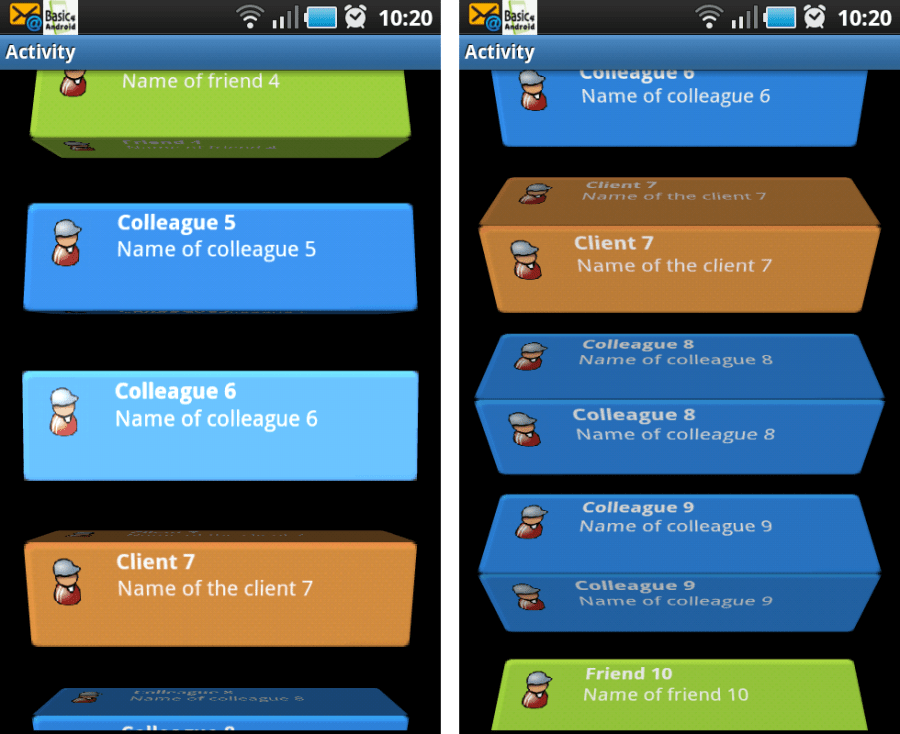
The camera I’m talking about is a nice feature you can use to do 3D effects on the canvas without using OpenGL. The picture above is just a noral B4A canvas where we did some rotations and translations on. It simulates a scrolling list where the listitems rotate around their axe.

Additional, I shows other features of the ABExtDrawing library to do some lighting effects.

Let me show you how this is done in B4A.

We create a new type item3D. This will hold one item in the list.

Sub Process_Globals
	Type item3D (bmp As Bitmap, Top As Int, Left As Int, Width As Int, Height As Int)
End Sub

We also have to declare some variables. Note our mCamera variable which will do the 3D conversions and some constants for our lighting effects. On a Paint object we can set color filters which will affect the color values of what we draw with that Paint object. SetLightingColorFilter takes care of that. A LightingColorFilter takes two colors that are used to modify the colors that we are drawing. The first color will be multiplied with the colors we draw, while the second one will be added to the colors we draw. The multiplication will darken the color and adding will make it brighter so we can use this class to model both shadows and highlights. It would have been even better if instead of adding it would have implemented the screen blend mode, but add works OK.

To actually calculate the light we’ll use a simplified version of Phong lighting.

Sub Globals
	'These global variables will be redeclared each time the activity is created.
	'These variables can only be accessed from this module.
	Dim items As List
	Dim HalfHeight As Float

	Dim SCALE_DOWN_FACTOR As Float: SCALE_DOWN_FACTOR = 0.15
	Dim DEGREES_PER_SCREEN As Int: DEGREES_PER_SCREEN = 270

	' Ambient light intensity
    Dim AMBIENT_LIGHT As Int: AMBIENT_LIGHT = 55
    ' Diffuse light intensity
    Dim DIFFUSE_LIGHT As Int: DIFFUSE_LIGHT = 200
    ' Specular light intensity
    Dim SPECULAR_LIGHT As Float: SPECULAR_LIGHT = 70
    ' Shininess constant
    Dim SHININESS As Float: SHININESS = 200
    ' The Max intensity of the light
    Dim MAX_INTENSITY As Int: MAX_INTENSITY = 0xFF

	Dim CurrentRotation As Int
	Dim CurrentTop As Int
	Dim MyCanvas As Canvas

	Dim ScreenTop As Int: ScreenTop = 1
	Dim Panel1 As Panel

	Dim ExDraw As ABExtDrawing
	Dim mCamera As ABCamera
	Dim mMatrix As ABMatrix
	Dim mPaint As ABPaint

	Dim PI As Double: PI= 3.141592653589793238462643383279502884197

	Dim ClearRect As Rect

	Dim CurrY As Int
End Sub

In the Activity_Create sub we initialize mCamera and the other variables like mPaint which we will also need for our lighting. Also our pictures are preloaded.

Sub Activity_Create(FirstTime As Boolean)
	Activity.LoadLayout("1")

	MyCanvas.Initialize(Panel1)

	HalfHeight = Activity.Height / 2

	Dim backbmp As Bitmap
	backbmp.Initialize(File.DirAssets, "background.png")
	Dim backbmp2 As Bitmap
	backbmp2.Initialize(File.DirAssets, "background2.png")
	Dim backbmp3 As Bitmap
	backbmp3.Initialize(File.DirAssets, "background3.png")

	Dim conbmp As Bitmap
	conbmp.Initialize(File.DirAssets, "contact_image.png")
	Dim conbmp2 As Bitmap
	conbmp2.Initialize(File.DirAssets, "contact_image2.png")
	Dim conbmp3 As Bitmap
	conbmp3.Initialize(File.DirAssets, "contact_image3.png")

	items.Initialize
	Dim i As Int
	Dim random As Int
	For i = 0 To 19
		random = Rnd(0,3)
		If random = 0 Then
			items.Add(CreateNewItem(backbmp, conbmp, "Colleague " & i, "Name of colleague " & i, 25, i*175, Activity.Width - 50, 120))
		Else
			If random = 1 Then
				items.Add(CreateNewItem(backbmp2, conbmp2, "Friend " & i, "Name of friend " & i, 25, i*175, Activity.Width - 50, 120))
			Else
				items.Add(CreateNewItem(backbmp3, conbmp3, "Client " & i, "Name of the client " & i, 25, i*175, Activity.Width - 50, 120))
			End If
		End If
	Next

	CurrentRotation = -(DEGREES_PER_SCREEN * ScreenTop) / Activity.Height

	ClearRect.Initialize(0,0,Activity.Width, Activity.Height)

	mCamera.Initialize
	mMatrix.Initialize
	mPaint.Initialize
	mPaint.SetAntiAlias(True)
    mPaint.SetFilterBitmap(True)

	DrawMe
End Sub

The sub CreateNewItem() is used to make one list item. Default B4A canvas drawing functions are used to show how well they work together with the ABExtDrawing functions.

Sub CreateNewItem(Background As Bitmap, icon As Bitmap, Subj As String, desc As String, Left As Int, Top As Int, Width As Int, Height As Int) As item3D
	Dim item As item3D
	Dim c As Canvas
	item.Initialize
	item.bmp.InitializeMutable(Width, Height)

	c.Initialize2(item.bmp)

	' background
	Dim dstR As Rect
	dstR.Initialize(0,0,Width,Height)
	c.DrawBitmap(Background,Null, dstR)

	' draw Icon
	dstR.Initialize(15,15, icon.Width, icon.Height)
	c.DrawBitmap(icon, Null, dstR)

	c.DrawText(Subj, 100, 30,Typeface.DEFAULT_BOLD,16, Colors.White,"LEFT")
	c.DrawText(desc, 100, 60, Typeface.DEFAULT,16, Colors.White,"LEFT")

	item.Top = Top
	item.Left = Left
	item.Width = Width
	item.Height = Height
	Return item
End Sub

In the drawItem() sub all calculations are done for one item in the list. Each item will be a block that will rotate around its X-axis and look like it is rolling on the ground when the list stars to scroll. Each block will be as wide as the item normally is and the depth will be the same as the height. We’ll use the same bitmap for all the sides.

So what do we need to do to achieve this effect? In order to draw the blocks we need to draw the bitmap two times (since we will almost always see two sides of the block). We also need to have some kind of rotation variable to keep track of the main rotation. Since the blocks should rotate when the user scrolls the list and the blocks should have the same rotation (so that they all face up at the same time, see further).

Sub DrawItem(item As item3D)
	Dim CenterX As Float
	Dim CenterY As Float

	' get centerX AND centerY
	CenterX = item.Width / 2
	CenterY = item.Height / 2

    ' get scale
    Dim distFromCenter As Float
	distFromCenter = (item.Top + CenterY - HalfHeight) / HalfHeight
	Dim scale As Float
	scale = (1 - SCALE_DOWN_FACTOR * (1 - Cos(distFromCenter)))

    ' get rotation
    Dim RotationX As Float
	RotationX = CurrentRotation - 20 * distFromCenter
    RotationX = RotationX Mod 90
    If (RotationX < 0) Then
        RotationX = RotationX + 90
    End If	

    ' draw it
    If (RotationX < 45) Then
		drawFace(item, CenterX, CenterY, scale, RotationX - 90)
        drawFace(item, CenterX, CenterY, scale, RotationX)

    Else
        drawFace(item, CenterX, CenterY, scale, RotationX)
        drawFace(item, CenterX, CenterY, scale, RotationX - 90)
    End If
End Sub

Finally, DrawFace is called and this is where the magic happens. Worth noting is that the code that will draw one face of the block is the same, it just depends on the rotation, so it’s extracted to a method. To draw a complete block we then simply draw two faces 90 degrees apart at the same place.

To draw a face we first translate the camera so that the face will be drawn closer to us. Then we rotate it and after that we translate it back so we don’t scale it. Keep in mind that the calls to the camera, just like the rotate, translate and scale methods on Canvas, needs to be written in reversed order, so to speak. In the code below, it is the last line that translates the face towards us, then we rotate it, and finally, with the first line, we translate it back.

mCamera.translate(0, 0, centerY);
mCamera.rotateX(rotation);
mCamera.translate(0, 0, -centerY);

The rest of drawFace is not that hard. It gets the matrix from the camera, pre and post translates the matrix and then draws the bitmap with the matrix.

This code will draw each item as if placed in the origin in 3D space and then we move the items to the correct place on the screen using pre and post translate on the matrix. This moves what we draw in 2D space without changing the perspective. We could apply the translation in X and Y on the camera instead, then the translation would be in 3D space and it would affect the perspective. We’re not doing that here because I want the appearance of a larger field of view than the fixed field of view of the camera. Instead, we fake it by slightly rotating and scaling the items depending on the distance from center of the screen.

We calculate the light and create a LightingColorFilter that we can set to our Paint object.

Sub drawFace(item As item3D, CenterX As Float, CenterY As Float, scale As Float, RotationX As Float)
	' save the camera state
    mCamera.save

    ' translate AND Then rotate the camera
    mCamera.translate(0, 0, CenterY)
    mCamera.rotateX(RotationX)
	mCamera.translate(0, 0, -CenterY)

    ' get the matrix from the camera AND Then restore the camera
    mCamera.getMatrix(mMatrix)
    mCamera.restore()

    ' translate AND scale the matrix
    mMatrix.preTranslate(-CenterX, -CenterY)
    mMatrix.postScale(scale, scale)
    mMatrix.postTranslate(item.left + CenterX, item.top + CenterY)

    ' set the light
	Dim cosRotation As Double
	cosRotation = Cos(PI * RotationX / 180)
    Dim intensity As Int
	intensity = AMBIENT_LIGHT + (DIFFUSE_LIGHT * cosRotation)
    Dim highlightIntensity As Int
	highlightIntensity = (SPECULAR_LIGHT * Power(cosRotation,SHININESS))
    If (intensity > MAX_INTENSITY) Then
        intensity = MAX_INTENSITY
    End If
    If (highlightIntensity > MAX_INTENSITY) Then
        highlightIntensity = MAX_INTENSITY
    End If
    Dim light As Int
	light = Colors.rgb(intensity, intensity, intensity)
    Dim highlight As Int
	highlight = Colors.rgb(highlightIntensity, highlightIntensity, highlightIntensity)
    mPaint.SetLightingColorFilter(light, highlight)   

    ' draw the Bitmap
    ExDraw.drawBitmap4(MyCanvas, item.bmp,  mMatrix, mPaint)
End Sub

The DrawMe() sub is the overall function to draw all the items.

Sub DrawMe()
	Dim i As Int
	ExDraw.save2(MyCanvas, ExDraw.MATRIX_SAVE_FLAG)
	MyCanvas.DrawRect(ClearRect, Colors.Black, True, 1dip)
	'MyCanvas.DrawBitmap(FormBack, Null, formR)
	For i = 0 To items.Size - 1
		DrawItem(items.Get(i))
	Next
	ExDraw.restore(MyCanvas)

	Panel1.Invalidate
End Sub

And in the Panel1_Touch sub we’ll animate our list. Note that it is here that we make sure all boxes face the same. This is done by the lines:

ScreenTop = ScreenTop + DeltaY
CurrentRotation = -(DEGREES_PER_SCREEN * ScreenTop) / Activity.Height

Doing like this will make the blocks rotate DEGREES_PER_SCREEN degrees when the user scrolls the list an entire screen no matter the pixel-height of the screen.

Here is the full sub:

Sub Panel1_Touch (Action As Int, X As Float, Y As Float) As Boolean 'Return True to consume the event
	Dim DeltaY As Int
	Select Action
        Case Activity.ACTION_DOWN
			CurrY = Y
            'Log("down")
        Case Activity.ACTION_MOVE
			DeltaY = Y - CurrY
			CurrY = Y
			Dim i As Int
			Dim it As item3D
			For i = 0 To items.Size - 1
				it = items.Get(i)
				it.Top = it.Top + DeltaY
				items.Set(i, it)
			Next

			ScreenTop = ScreenTop + DeltaY
			CurrentRotation = -(DEGREES_PER_SCREEN * ScreenTop) / Activity.Height

			DrawMe
            'Log("move")
        Case Activity.ACTION_UP
            'Log("up")
    End Select
    Return True
End Sub

So this concludes this tutorial. You can download the project from http://www.gorgeousapps.com/AB3DCamera.zip

Note that at the first run, it may not work very smooth on some devices. But after some time it goes very well.

Have fun programming and until next time!

Click here to Donation if you like my work

Basic4Android: new library ABExtDrawing

ABExtDrawing is a library I wrote to access more from the Android Drawing classes in B4A. It extends the B4A canvas so you can also use all Paint, Matrix, Region, ColorMatrix and Path functionalities.

Several sub objects are included:
ABPaint: a wrapper for thePaint class
ABMatrix: a wrapper for the Matrix class
ABRegion: a wrapper for the Region class
ABColorMatrix: a wrapper for the ColorMatrix class
ABRgbFunctions: several functions to manipulate RGB values

Also two extended classes
ABRectF: a wrapper around the RectF class. B4A contains the Rect class, but to use some of the functions of this library I needed the float version of Rect.
ABPath: a full wrapper for the Path class. B4A contains the Path class but only exposes LineTo. ABPath exposes all functions (like addArc, addOval, etc…)

This library is to big to list all the functions, but a lot of them are used in the attached demo. It is a B4A translation of the Thermometer project on Mind The Robot http://mindtherobot.com/blog/272/android-custom-ui-making-a-vintage-thermometer/

How to use this library:

The main object is ABExtDrawing. You pass the B4A canvas to each function:

Sub Globals
        Dim ExDraw As ABExtDrawing
        Dim MyCanvas As Canvas
        Dim Panel1 as Panel
end Sub

Sub Activity_Create(FirstTime As Boolean)
        If FirstTime Then
		Activity.LoadLayout(&quot;2&quot;)
		MyCanvas.Initialize(Panel1)
	End If
        drawRim(MyCanvas)
End Sub

Sub drawRim(Canv As Canvas)
	' first, draw the metallic body
	ExDraw.drawOval(Canv, rimRect, rimPaint)
	' now the outer rim circle
	ExDraw.drawOval(Canv, rimRect, rimCirclePaint)
End Sub

The fun part is you can create all kind of Paints:

        ' the linear gradient Is a Bit skewed For realism
	rimPaint.Initialize
	rimPaint.SetFlags(rimPaint.flag_ANTI_ALIAS_FLAG)
	rimPaint.SetLinearGradient2(1,0.40, 0.0, 0.60, 1.0, Colors.RGB(0xf0, 0xf5, 0xf0),Colors.RGB(0x30, 0x31, 0x30),rimPaint.ShaderTileMode_CLAMP)
	rimPaint.DoShaderSingle(1)

	rimCirclePaint.Initialize
	rimCirclePaint.SetAntiAlias(True)
	rimCirclePaint.SetStyle(rimCirclePaint.Style_STROKE)
	rimCirclePaint.SetColor(Colors.ARGB(0x4f, 0x33, 0x36, 0x33))
	rimCirclePaint.SetStrokeWidth(0.005)

Or make extended Paths:

        handPath.Initialize
	handPath.moveTo(0.5, 0.5 + 0.2)
	handPath.lineTo(0.5 - 0.010, 0.5 + 0.2 - 0.007)
	handPath.lineTo(0.5 - 0.002, 0.5 - 0.32)
	handPath.lineTo(0.5 + 0.002, 0.5 - 0.32)
	handPath.lineTo(0.5 + 0.010, 0.5 + 0.2 - 0.007)
	handPath.lineTo(0.5, 0.5 + 0.2)
	handPath.addCircle(0.5, 0.5, 0.025, handPath.Direction_CW)

You can also use the Save and Restore functions of the canvas:

Sub drawScale(Canv As Canvas)
	ExDraw.drawOval(Canv, scaleRect, ScalePaint)

	ExDraw.save2(Canv, ExDraw.MATRIX_SAVE_FLAG)
	Dim i As Int
	Dim y1 As Float
	Dim y2 As Float
	Dim value As Int
	Dim valueString As String
	For i = 0 To totalNicks
		y1 = scaleRect.top
		y2 = y1 - 0.020

		ExDraw.drawLine(Canv, 0.5, y1, 0.5, y2, ScalePaint)

		If (i Mod 5 = 0) Then
			value = nickToDegree(i)
			If (value &gt;= minDegrees AND value &lt;= maxDegrees) Then
				valueString = value
				ExDraw.drawText(Canv, valueString, 0.5, y2 - 0.015, ScalePaint)
			End If
		End If

		ExDraw.rotate2(Canv, degreesPerNick, 0.5, 0.5)
	Next
	ExDraw.restore(Canv)
End Sub

And write filters like this GreyScale filter:

Sub GrayScale(bmp As Bitmap) As Bitmap
    Dim bmpGrayscale As Bitmap
    bmpGrayscale.InitializeMutable(bmp.Width, bmp.height)
    Dim c As Canvas
    c.Initialize2(bmpGrayscale)

    Dim paint As ABPaint
    paint.Initialize

    Dim mat As ABColorMatrix
    mat.Initialize
    mat.SetSaturation(0)

    paint.SetColorMatrixColorFilter2(mat)

    ExDraw.drawBitmap2(c, bmp, 0, 0, paint)

    Return bmpGrayscale
End Sub

Because of all the possibilities this library has, I may do some more articles on this blog.

For more information on what you can do with the library, look into the Android Documentation http://developer.android.com/reference/android/graphics/Canvas.html

As a registered user, you can download the library from the Basic4Android website
The demo project can be downloaded from http://www.gorgeousapps.com/ABExtDrawingDemo.zip

Click here to Donation if you like my work

12Scan: additional

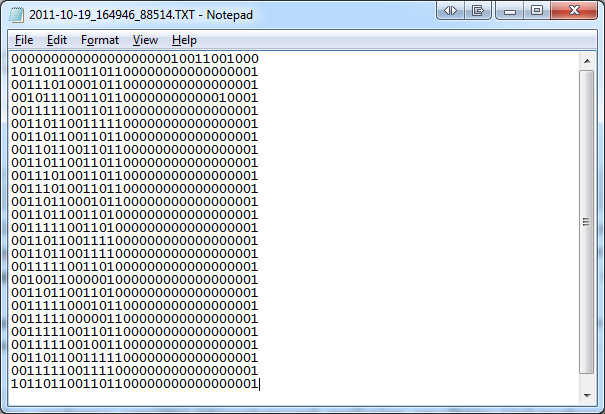
Some people asked me what the output of 12Scan looks like. Well, it’s a plain TXT file with the matrix in it. A zero if it is not checked, A one if the user checked it. Any other program can then use this data how they want.

Here is the output of the demo:

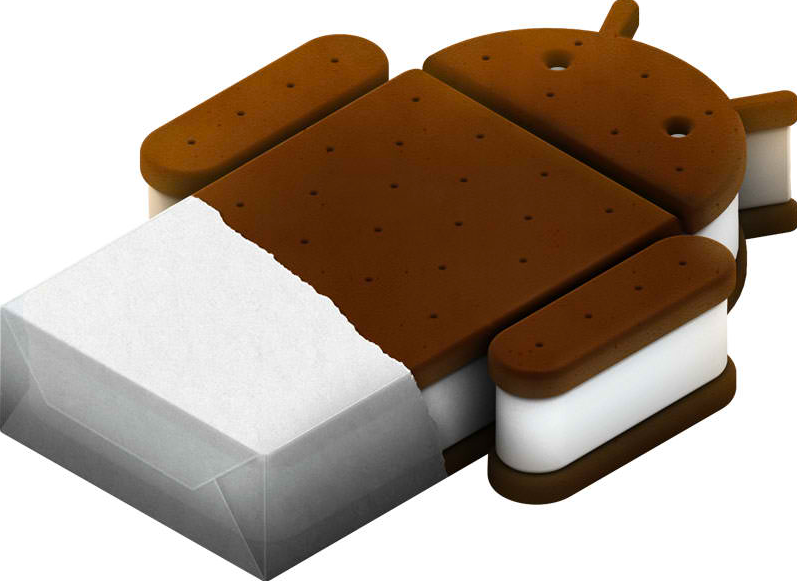
Prepare for Android Ice Cream Sandwich

Ice Cream Sandwich is coming and it seems there are a couple of changes for us developers. The new Android version will bring phones and tablets closer together. Google has put a tutorial online so we can start preparing us.

The Ice Cream Sandwich release will support big screens, small screens, and everything in between. This is the way Android will stay from now on: the same version runs on all screen sizes.

As for now, a Honeycomb application runs only on big screens and it didn’t need to think about smaller screens. In ICS, the developer will need to prepare for different layouts.

In the tutorial, Google gives tips on how you can make a layout that works well on both type devices.

Developers can already start to include some of the changes. ICS will be available around the beginning of November. Some say the Nexus Prime will be launched on November 3th and this device will have ICS.

Wondering how Basic4Android will cope with those changes.

We’ll keep an eye on that!

See the Google tutorial for more tips: http://android-developers.blogspot.com/2011/09/preparing-for-handsets.html

Installing Windows 8 Preview in Virtual Box 4.1

Today Microsoft released a preview of windows 8. Naturally we do want to test it but knowing Microsoft we do not want to mess up our existing machines 🙂

So we install it on a virtual machine. As for now it does not work on VMWare. However, VMWare 8 will come out in a couple of days and it should support Windows 8.

As for now, we are going to use virtual box 4.1.

Note: click on the pictures if you want to see the full screenshot.

First download the files:

Virtual box:
http://download.virtualbox.org/virtualbox/4.1.2/VirtualBox-4.1.2-73507-Win.exe
Windows 8 Developer Preview:
http://wdp.dlws.microsoft.com/WDPDL/9B8DFDFF736C5B1DBF956B89D8A9D4FD925DACD2/WindowsDeveloperPreview-64bit-English-Developer.iso

Read the full Installation Guide…

Augmented Reality: bring out the Bat-Signal!

After playing around with AR, I’ve decided to make a B4A library from an existing AR library: NyARToolkit (http://nyatla.jp/nyartoolkit/).

Some functions did not work properly and I had to rewrite some of them so they could fit in a B4A library. I also wanted to use the GLSurfaceView from Andrew Graham in basic4android. To do this, I had to extract everything that had to do with 3D and OpenGL. It took some fiddling around, but I think I cracked it.

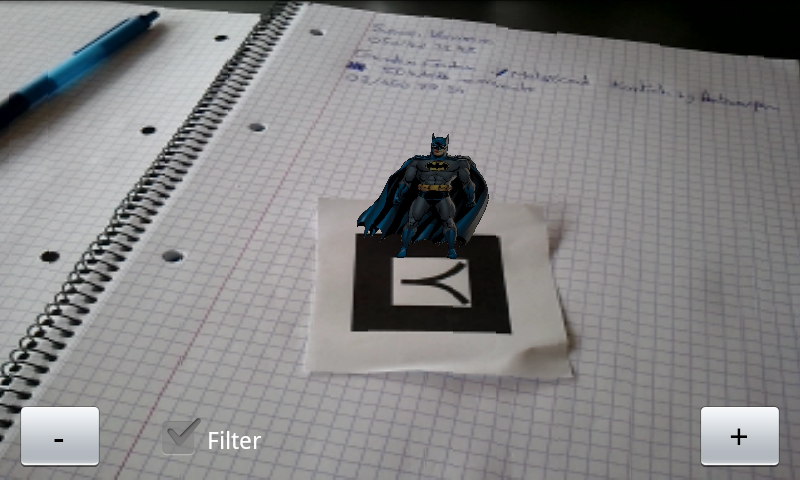
With a couple of lines in b4a, I can now find the markers and put a 3D model on top of it. The speed and accuracy of the NyARToolkit is ok and it is certainly possible to make some fun projects.

Just to play around, I’ve put one of my favorite superheroes on top of the marker. Batman to the rescue!

Example of the code needed to get the markers:

Sub ABAR_MarkersFound()
	
	Dim Vect As ABARVector2D
	Dim a As Int
	Dim b As Int
	Dim Markers As List
	Markers.Initialize
	Markers = ABAR.GetMarkers()
	Dim corners As List
	corners.Initialize
	Dim Msg As String
	
	FoundMarkers = markers.Size - 1
	For a = 0 To foundMarkers
		
		Mark = Markers.Get(a)
		conf(a) = Mark.Confidence
	
		counter = 0
		Msg = "Marker: " & Mark.ARCodeIndex & CRLF
		Msg = Msg & "x:" & Mark.Center.x & " y:" & Mark.Center.y & CRLF
		Msg = Msg & "Confedence:" & Mark.Confidence & CRLF
		Corners = Mark.Corners
		Vect = Corners.Get(0)
		Msg = Msg & "Corner1=x:" & vect.x & "y:" & vect.y & CRLF
		Vect = Corners.Get(1)
		Msg = Msg & "Corner2=x:" & vect.x & "y:" & vect.y & CRLF
		Vect = Corners.Get(2)
		Msg = Msg & "Corner3=x:" & vect.x & "y:" & vect.y & CRLF
		Vect = Corners.Get(3)
		Msg = Msg & "Corner4=x:" & vect.x & "y:" & vect.y & CRLF
		Markfound = True
		For b = 0 To 15
			tmpresultf(a,b) = Mark.resultf(b)
			tmpcameraRHf(b) = Mark.cameraRHf(b)
		Next
		Msg = Msg & CRLF
			
		useRHfp = True
		drawp = True

		Log(Msg)		
	Next
	glsv.RequestRender
End Sub

Let’s get physical with Basic4Android

One of the libraries I wrote for Basic4Android is ABPhysicsEngine. This is a full 2D Newton engine. Games like ‘Angry Birds’ and ‘Cut the rope’ are made with similar engines. This one is very easy to use within B4A.

For this tutorial you must download version 1.1 of the library from the B4A forum!

Here is a little ‘anti-stress’ game I made with the library in B4A. You have to tap very fast anywhere on the screen and all kind of balls will appear and fall down on the two running Garfields. No winning or prices, but this is for learning purposes anyway.

Let’s get started with the tutorial…

Augmented Reality: Taking away the rainbow

For the Augmented Reality project, I’ll need to grayscale the image.

There are 3 types of grayscaling available in the class but the one I’ll need will be BT709. It turns out it gives the best results for searching glyphs.

It’s a simple conversion but already we have something to take into account when we use Java: the byte type. A byte in java has a value of -128 to 127 instead of 0 to 255. Therefor we will need to do & 0xFF when we return the grayscaled bitmap.

I’ll have to remember this for future calculations on the imageData array!

Here is the class. De imageData is kept in memory as I’ll need those pixels anyway to do the next step: Edge detection!

// Copyright © Alain Bailleul, Alwaysbusy's Corner 2011
//
// Grayscale type values from:
//
// AForge Image Processing Library
// AForge.NET framework
// http://www.aforgenet.com/framework/

import android.graphics.Bitmap;
import android.graphics.Color;

public static class ABImage
{
    //data that will contain the grayscaled pixels
    public byte[] imageData;
    public int width=0;
    public int height=0;
    private double RedCoefficient;
    private double GreenCoefficient;
    private double BlueCoefficient;

    //3 types of grayscaling
    public void SetGrayscaleBT709() {
        RedCoefficient   = 0.2125;
        GreenCoefficient = 0.7154;
        BlueCoefficient  = 0.0721;
    }

    public void SetGrayscaleRMY() {
        RedCoefficient   = 0.5000;
        GreenCoefficient = 0.4190;
        BlueCoefficient  = 0.0810;
    }

    public void SetGrayscaleY() {
        RedCoefficient   = 0.2990;
        GreenCoefficient = 0.5870;
        BlueCoefficient  = 0.1140;
    }

    // create a 8 bit byte array with the pixels of the grayscaled image
    public void FromBitmap( Bitmap image )
    {
        width = image.getWidth();
        height = image.getHeight();

        int[] pixelData = new int[width * height];
        int i = 0;

        image.getPixels(pixelData, 0,width, 0, 0, width, height);

        for (int pixeldatai: pixelData)
        {
             imageData[i++] = (byte) ( RedCoefficient * Color.red(pixeldatai)
                                    + GreenCoefficient * Color.green(pixeldatai)
                                    + BlueCoefficient * Color.blue(pixeldatai));
        }
    }

    //return the grayscale byte array back to a 32 bit bitmap
    public Bitmap ToBitmap()
    {
        int[] pixelData = new int[width * height];
        int i=0;

        for (byte imageDatai: imageData)
        {
            pixelData[i++] = ((255 & 0xFF) << 24) | //alpha
                ((imageDatai & 0xFF) << 16) | //red
                ((imageDatai & 0xFF) << 8 )  | //green
                ((imageDatai & 0xFF) << 0 ); //blue
            }
        return Bitmap.createBitmap(pixelData, width, height, Bitmap.Config.ARGB_8888);
    }
}

Tricking B4A and Java to do byref. How about that!

Neither B4A nor Java support byref arguments nativily. Or do they?

By using this simple trick, you can mimic byref by exploiting their hidden pointer potential.

In Java:

private void Test() {
   //declare the byref value as an array with size 1
   String[] value = new String[1];
   //passing an array is not passing the whole array, but a pointer
   ByrefTest(value);
   //Et voila! the changed value
   System.out.print(value[0]);
}

private void ByrefTest(String rValue[]) {
   // using the pointer, B4A fills the string with our value
   rValue[0] = "Changed in the function!";
}

In B4A:

Sub Activity_Create(FirstTime As Boolean)
   ' dim the byref value as an array with size 1
   Dim value(1) As String
   ' passing an array is not passing the whole array, but a pointer
   ByrefTest(Value)
   ' Et voila! the changed value
   Msgbox( value(0), "")
End Sub

Sub ByrefTest(rValue() As String)
   ' using the pointer, B4A fills the string with our value
   rValue(0) = "Changed in the function!"
End Sub

This will come in handy when I convert some AForge.NET c# code to java, I’m sure!

Augmented Reality on Android, a start…

I’m looking into Augmented reality on my Android phone and tablet. The main functions will be written in java and then used as a library in B4A. I’m looking into AForge.NET and I’ll probably will port some code from their C# library to java.

The first step I do is searching for glyphs in an image. This is an example of one of those glyphs:

For a human it is no problem to locate the glyphs, but for a computer it is quite a challenge.

These are the steps I’m planning to make:

1. Downscale the image to a smaller picture (for speed)

2. Convert the picture to an array of pixels

3. Greyscale the image using the pixel array

4. Run some Edge detection algorithm to help me find the blobs

5. examine the blobs and look which ones look quadrangular

6. Check if they are an actual glyph

7. calculate its position in 3D space

8. use OpenGL to show an object on the glyph

And all of this as fast as possible!

I’ll keep you posted.

Some of my projects at One-Two

I’ll post some of  my projects I made at One-Two (http://www.one-two.com). We make Time, Job and tracking programs. As you will see, I love the Canvas!

They are written in RealBasic as this is our main programming language. I’m not very interested it writing ‘normal’ looking programs. I like designing new experimental interfaces to make it very intuitive to work with the software.

So here they come:

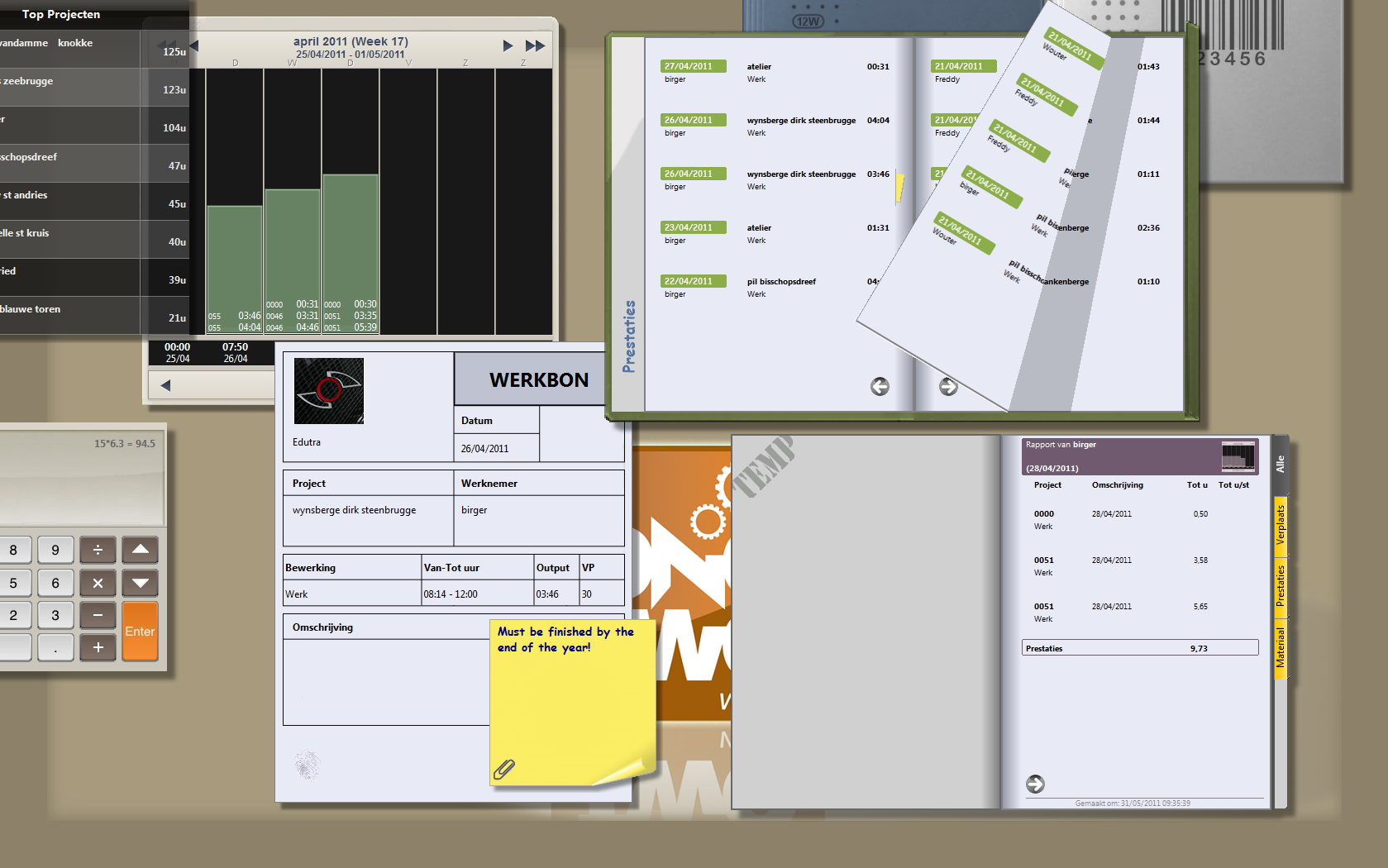
12Time: A program to track the time (by using a time clock)

12Work: A Program to track jobs with an alternative GUI (with handheld scanners)

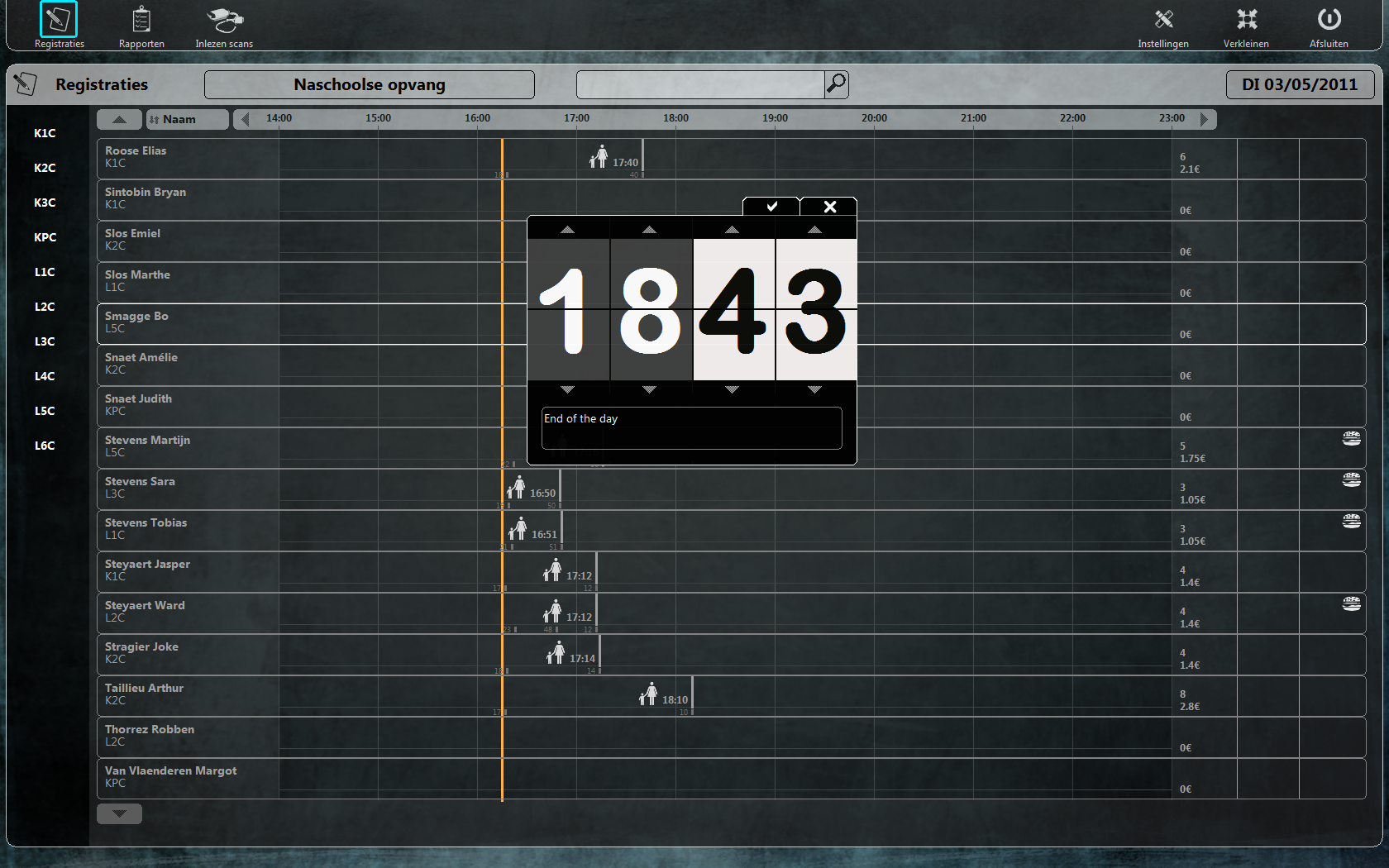
12School: A program to track a school (reception, classes, meals)

Basic4Android: A new easy to use programming language for Android

Don’t let the name fool you! Although being very easy to use, it’s a powerful language. The syntax is very similar to the good old VB6, but when compiled its pure Java. Even more, you can write your own libraries in Java and use them in the IDE.

An excellent feature of B4A is the B4A-Bridge: simply the best way to debug your code line by line fast. Yes, I said debug line by line! You can place break points in your code and read the value of variables. I did mention it looked a lot like VB6, didn’t I 🙂

I’ve written some libraries in java for B4A and they are freely downloadable if you have a license. And why shouldn’t you? You can have B4A Enterprise for the ridiculous sum of $99 USD.

Anyway, definitely worth to check out!

http://www.basic4ppc.com/index.html

Welcome to the programming corner of Alwaysbusy

My name is Alain Bailleul and I’m the lead programmer at One-Two. I like to experiment with new technologies like the Kinect, Computer Vision and A.I.  Some of my projects are programmed in more exotic languages like RealStudio and Basic4Android, but also in C# or java.

I’ll post some of those projects on this blog and I hope you learn some new exciting stuff!