B4J: ABMaterial Public 1.06/Donators 1.07 now released

The public version 1.06 of ABMaterial is now available from the B4J website!

Some highlights on this public release:

Theme and controls have a Colorize() method to quickly change a theme
Getting more out of the Theme system. Just by using the one single line in B4J, theme.Colorize(myColor), you can change the base color of ABMaterial. You can of course still tune it manually.

Colorizing a theme in one line in ABMaterial

ABMDataTimeScroller
New component to let the user choose a date through a scroller.  Can be used to get the date, the time or both. See the demo for more.

The DateTime Scroller of ABMaterial

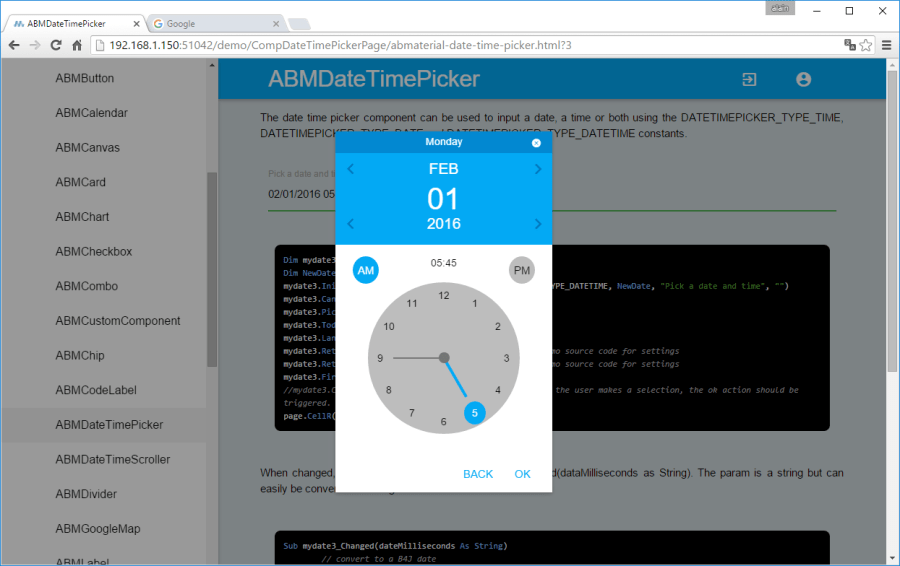
ABMDateTimePicker
Alternative component to let the user choose a date/time.  The date can be picked on a calendar, the time on a clock. See the demo for more.

The Date picker of ABMaterial

The Time picker of ABMaterial

Speed gain by using minified versions of the javascript/css files
This is just the first step in speeding up ABMaterial and the user experience both on a desktop and a mobile device. I continue searching for methods to make ABMaterial even faster!

Read the README1.06.TXT for the full release notes.

Download ABMaterial Public version 1.06

Donators will receive an email with the download link to ABMaterial 1.07 containing two new controls, ABMEditor and ABMSocialShare.  A optimized TreeView and Google Analytics support is also included!

Happy programming!

Alwaysbusy

Click here to Donation if you like my work


B4J: Using Google Analytics with ABMaterial

ABMaterial and Google Analytics

As ABMaterial is a hybrid website/webapp framework, you can use SEO (see previous article), and now even Google Analytics in the upcoming version 1.07. This article shows how you can use Google Analytics by adding just one extra line of B4J code on your page!

Note: This post is an ABMaterial adaptation of an excellent article for beginners on Google Analytics by Kristi Hines. Just to make it easier for you, I used and changed it just up to where ABMaterial comes in.  At the end of this post you can then continue reading the original one for more tips and tricks.

Why every website/webapp needs Google Analytics

Here are just a few of the many questions about your ABMaterial website/webapp that you can answer using Google Analytics.

  • How many people visit my website/webapp?
  • Where do my visitors live?
  • What websites send traffic to my website/webapp?
  • What marketing tactics drive the most traffic to my website/webapp?
  • Which pages on my website/webapp are the most popular?
  • How many visitors have I converted into leads or customers?
  • Where did my converting visitors come from and go on my website/webapp?
  • What content do my visitors like the most?

There are many, many additional questions that Google Analytics can answer, but these are the ones that are most important for most website/webapp owners. Now let’s look at how you can get Google Analytics on your ABMaterial website/webapp.

How to install Google Analytics

First, you need a Google Analytics account. If you have a primary Google account that you use for other services like Gmail, Google Drive, Google Calendar, Google+, or YouTube, then you should set up your Google Analytics using that Google account. Or you will need to create a new one.

This should be a Google account you plan to keep forever and that only you have access to. You can always grant access to your Google Analytics to other people down the road, but you don’t want someone else to have full control over it.

Big tip:

don’t let anyone (your web designer, web developer, web host, SEO person, etc.) create your website’s Google Analytics account under their own Google account so they can “manage” it for you. If you and this person part ways, they will take your Google Analytics data with them, and you will have to start all over.

Set up your account and property

Once you have a Google account, you can go to Google Analytics and click the Sign into Google Analytics button. You will then be greeted with the three steps you must take to set up Google Analytics.

google analytics setup

After you click the Sign Up button, you will fill out information for your website.

For the absolute beginner’s guide, we’re going to assume you have one website and only need one view (the default, all data view. The setup would look something like this.

new account information google analytics

Beneath this, you will have the option to configure where your Google Analytics data can be shared.

configuring shared info for google analytics

Our google account is setup and all we need now is get our Tracking ID and add it in ABMaterial.

Click the Get Tracking ID button. You will get a popup of the Google Analytics terms and conditions, which you have to agree to. Then you will get your Google Analytics Tracking ID.

Tracking ID in the Google Analytics Console

In our ABMaterial app, all we have to do is add this single line to each of our pages in the BuildPage() method:

page.Initialize(Name, “/ws/appName/Name, False)
page.UseGoogleAnalytics(“UA-64248213-1”, Null)

I guess it can’t get much easier, no?

If you want to go deeper into Google Analytics, I suggest reading the original article The Absolute Beginner’s Guide to Google Analytics.

ABMaterial 1.07 will be realeased in a couple of weeks for the donators. Addidtional to Google Analytics support, two new components ABMEditor and ABMSocialShare will be included, but more on this in a next article.

Happy programming!

Alwaysbusy


B4J: ABMaterial Public 1.05/Donators 1.06 now released

The public version 1.05 of ABMaterial is now available from the B4J website!  Three new controls:

ABMSlider: Add a slider for values with a wide range.

Range

ABMRange: Add a range slider for values with two handlers.

Slider

ABMCustomControl: add your own components to the ABMaterial framework.

CustomComponent

Some more highlights on this release:

  • Complete rewrite of the Refresh system
  • Material Icon Fonts are now loaded locally
  • Disable the back button in the browser
  • ABMModalSheet FULL size option
  • LocalStorage support
  • ABMPlatform object containing basic info on the users browser and device
  • Integrate variables for SEO-optimization
  • Responsive tables

Read the README1.05.TXT for the full release notes.

Download ABMaterial Public version 1.05

Donators will receive an email with the download link to ABMaterial 1.06 containing two new controls, ABMDataTimeScroller and ABMDateTimePicker.

Happy programming!

Alwaysbusy

Click here to Donation if you like my work

B4J: ABMaterial WebApps and SEO (Search Engine Optimization)

SEO

A feedback case I got from one of the users of ABMaterial, Herbert, was the question how ABMaterial for B4X coped with SEO-optimization. To be perfectly honest, I hadn’t really though about it. I  had a couple of things already, like headers, bold text, a page title and description.

As any good programmer,  if it looks nice, is user friendly and works as expected, my work is done and users will find and like it. No?

And it kept me thinking.  So this morning, lying awake at 4  o’clock (sleeping is highly overrated IMHO and an invention of the Bed Consortium, but I’m sidetracking), I decided to learn more about SEO and how it could be implemented in ABMaterial for B4X.

Herbert gave me some links, so I started reading up.

Looked like I had some things right already, but ABMaterial could use some polishing.

For starters, I added some extra properties to the ABMaterial page object that will be saved in the generated html file:

pageTitle: very important, pick good keywords
pageDescription: keep it around 140 to 160 chars
pageKeywords: a comma delimited string containing your page keywords
pageHTMLName: it is always index.html in ABMaterial, but it’s better to give it some name using keywords, like ‘abmaterial-custom-component.html’, use hyphens (-) between words to improve readability
pageSiteMapPriority: a value between 0.00 and 1.00, see further
pageSiteMapFrequency: how frequently the page is updated (never, none, always, hourly, weekly, yearly, …), see further

Headers:

Covered!  ABMaterials labels can have headers like <h1>, <h2> so we’re ok.  Tip: create only one <h1>!

<h1>Most Important</h1>
<h2>Second Most Important</h2>
<h3>Third Most Important</h3>

Bold:

Got it: You can use markers like {B}{/B} in labels to set text in bold/strong.

Use tag in a image:

Ah, needed some changes.  I misused it.  Thinking ‘who the #?@! can’t show images anymore these days‘, I used it as an image toggle property.  Changed it now so it can be used properly.

Hyperlinks:

Added some extra markers {AS}{/AS} in the ABMLabel Component so you can add a title.

{AL}http://www.website.com/page.html{AS}keyword{/AS}{AT}my visible text{/A}

will result in:

<a rel=”nofollow” target=”_black” href=”http://www.website.com/page.html” title=”keyword”>my visible text</a>

sitemap.xml and robots.txt:

The Sitemaps protocol allows a webmaster to inform search engines about URLs on a website that are available for crawling. ABMaterial has the possibility to generate a sitemap.xml file and a robots.txt file (for sites like Ask.com).

What does it look like Alwaysbusy, I hear you ask. Well, something like this:

<?xml version=”1.0″ encoding=”UTF-8″?>
</pre>
<urlset
xmlns=”http://www.sitemaps.org/schemas/sitemap/0.9”
xmlns:xsi=”http://www.w3.org/2001/XMLSchema-instance”
xsi:schemaLocation=”http://www.sitemaps.org/schemas/sitemap/0.9
http://www.sitemaps.org/schemas/sitemap/0.9/sitemap.xsd”&gt;
<!– created with ABMaterial and B4J –>
<url>
<loc>https://alwaysbusycorner.com/index.html</loc&gt;
<lastmod>2016-01-16T11:11:16+00:00</lastmod>
<changefreq>monthly</changefreq>
<priority>1.00</priority>
</url>
<url>
<loc>https://alwaysbusycorner.com/alwaysbusy-abmaterial-introduction.html</loc&gt;
<lastmod>2016-01-16T11:11:16+00:00</lastmod>
<changefreq>monthly</changefreq>
<priority>0.50</priority>
</url>
<url>
<loc>https://alwaysbusycorner.com/alwaysbusy-abmaterial-customcomponent.html</loc&gt;
<lastmod>2016-01-16T11:11:16+00:00</lastmod>
<changefreq>yearly</changefreq>
<priority>0.50</priority>
</url>
</urlset>

To generate this is easy in ABMaterial, and needs just a couple of things:

  1. In ABMShared, add a property  public AppPublishedStartUrl as String = “http://yoururl.com”.

  2. In the initalize() method of ABMApplication, add ‘ABM.AppPublishedStartUrl=ABMShared.AppPublishedStartUrl.

  3. In the BuildPage() method of each page, set page.PageHTMLName=”your-good-keywords.html”

  4. Also in BuildPage(), add page.PageSiteMapPriority = “0.50” (number between 0.00 and 1.00, and don’t set them all to 1.00, that makes them equally important)

  5. Also add page.PageSiteMapFrequency = ABM.SITEMAP_FREQ_MONTHLY (use one of the contstants)

  6. If you use a ABMNavigationBar, update the url of each sidebar item in ABMShared, e.g. page.NavigationBar.AddSideBarItem(“Contacten”, “Contacten”, “mdi-action-dashboard”, “../StartPage/your-good-keywords.html”)

  7. In ABMApplication, also change your InitialPage=”your-good-keywords.html”

  8. In ABMApplication, change ‘index.html’ in the AddPage() method to Page.PageHTMLName

When you start your app, the sitemap.xml and robots.txt files will be generated next to your apps html file. After publishing it to your final site, you let the search engines know you want to submit your site.

You should be able to use these sitemap-submission URLS. Put the full URL to your sitemap, including http://, after the = sign:

http://www.google.com/ping?sitemap=

http://www.google.com/webmasters/sitemaps/ping?sitemap=

http://www.bing.com/webmaster/ping.aspx?sitemap=

http://submissions.ask.com/ping?sitemap=

http://www.didikle.com/ping?sitemap=

So, you’re already one step ahead of many other tools when you use B4J and ABMaterial!

Of course, your content will be the most important part to atract users and get high rankings in the search engines, but it never hurts giving them some help.

If any SEO expert reading this article has some other ideas, please post them.

ABMaterial 1.05, supporting all this, will be send to the donators early next week. Quite some goodies included in this release!

Head to the B4X website, download your free copy of B4J and go to the forum to download the ABMaterial framework.

Alwaysbusy

Some good rerading on SEO:

https://moz.com/beginners-guide-to-seo

http://webdesign.about.com/od/seo/tp/seo_tips_and_tricks.htm

SEO Heading Tags

What are Meta Descriptions

Click here to Donation if you like my work

B4J: 4.0 now supports HTTP/2, perfect tool for my ABMaterial framework

ABMaterial

You all know me as a Xojo fanatic, but lately I lost a bit of interest because the focus of the last year was so much about Apple, and Windows/Linux was a bit forgotten.

So I got back to my other favorite, B4X.  And what a pleasant ride it has been so far! It truly is a far to little known gem with so much power under the hood. Creating apps for Android, iOS, Desktop and Server apps is a blast.

Being able to share code between devices, having a simple but powerful (free) IDE, a very active community and a developer that really listens was quite refreshing.

My next project was writing a Material Design framework for Web Apps, without having to write a single line of HTML, CSS or JavaScript.  And quickly, it became obvious B4J was the one tool that could do it. ABMaterial was born.

Using very little code, you’re able to write beautiful (based on Material CSS) and powerful (B4J really stands out here) WebApps.  The enthusiastic crowd at the forum has pushed me through several nights continuing to write on the framework and has made me, although some polishing is still needed, a very happy camper.

It will be very useful to write WebApps (automatically adapting to the screen size of your device), and I even see it to be great to write nice interfaces for your Raspberry Pi projects. It consists of 25+ ‘themeable’ controls and some easy-to-use helpers to design your layouts.

To prove B4J is really on edge with the latest technologies, Erels latest release 4.0 for Christmas now supports HTTP/2. Benchmarks showed a big difference in speed and will undoubtedly be very useful for mobile devices.

I’ve set up a live demo of ABMaterial on my modest media center computer here. So, be gentle with her…

Or if you want to try it out yourself, head to the B4X website, download your free copy of B4J and go to the forum to download the ABMaterial framework.  The current ‘public’ version is 1.03.  Donators get updates (1.04 as at time of writing) about 2 to 3 weeks beforehand so I’m able to better control questions/feature requests or bugs (aaarrhh!).

I wish you all some very happy Holidays and I hope I’ll see you all next year for some more fun programming projects!

Alwaysbusy

Click here to Donation if you like my work


QuiQRun! launched

Barcelona Skin
Barcelona Skin

QuiQRun!, the social, fast barcode scanner and creator!

I’m very happy to release the first version of QuiQRun! for Android! In the next weeks I may do a couple of articles on the blog on how some things are done. (Basic4Android and Java).

I want to thank everyone that did test and translate the app!

Download free version

Please rate QuiQRun! if you like it!

More information and screenshots can be found at http://www.quiqrun.com

Alain

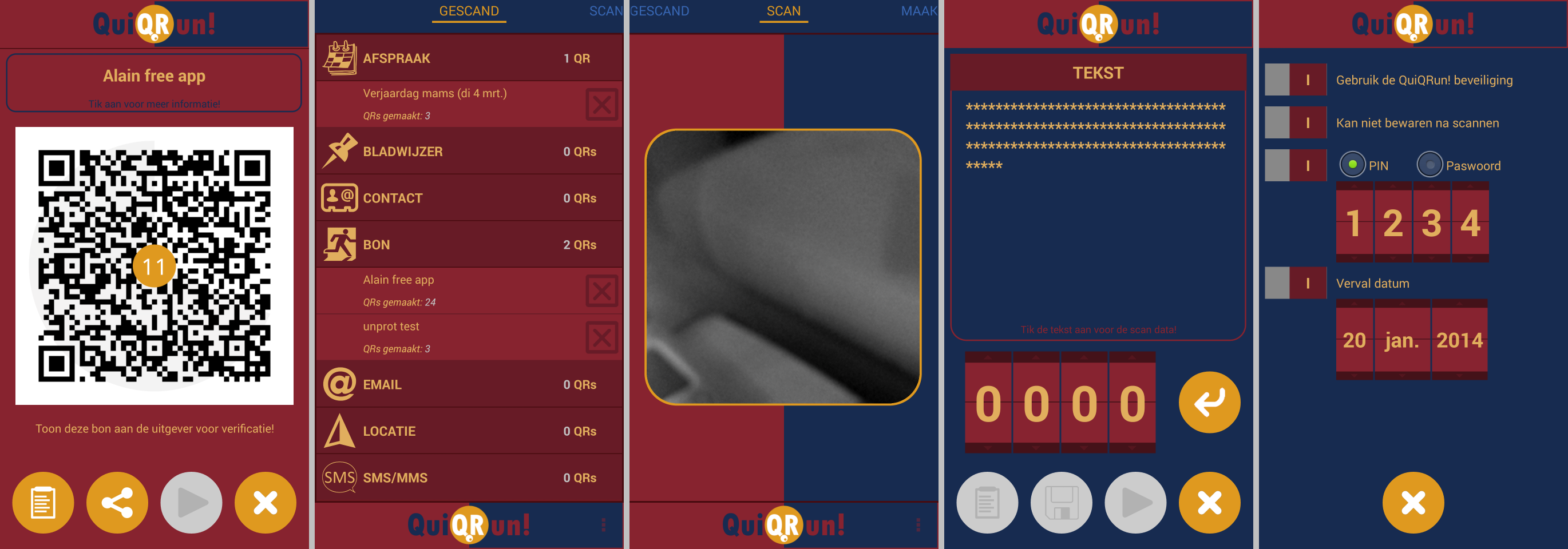
QuiQRun! A glimpse…

QuiQRun
I’m currently working on my new Android app called QuiQRun and this is the first time it is presented to the public. It is currently in the testing phase so it won’t be long until I will release it to Google Play.

What is QuiQRun?

QuiQRun consists of two main parts:

1. The White side: Save – Share – Scan QR Codes

• Scan QR Codes and barcodes with our fast build in scanner
• Decrypt codes created with QuiQRun Security and read codes generated by other apps
• A human readable summary and the raw QR data
• Save codes for later use. All codes are organized in a nice list for easy retrieval.
• Share your QR Code on Facebook, Twitter, Email, Dropbox and many more…
• Use the QR Code immediately on your smartphone

2. The Black side: Make – Share – Protect QR Codes

• Make QR Codes for Websites, Wifi, Contacts, locations, coupons and many more…
• Protect your QR Code with QuiQRun Security
– Encryption
– Prevent saving the QR Code
– Password or PIN protect
– Set an expiration date
• Share your QR code on Facebook, Twitter, Email, Dropbox and many more…
• Use the QR Code immediately on your smartphone

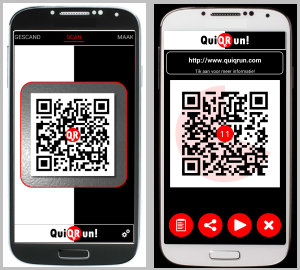
And here are the first screenshots!

QuiQRun
QuiQrun on Android

QuiQRun is written in Basic4Android. If you are a licensed user of B4A you can download an exclusieve preview version from the B4A ‘Test my App!’ forum! I would definitely appreciate the feedback 🙂

More information and screenshots can be found at QuiQRun

The coming weeks I’ll keep you up to date. Follow me on Twitter: QuiQRun

Alwaysbusy

Basic4Android: Using the new 3D Camera in ABExtDrawing 1.1

I’ve added the Camera object to the ABExtDrawing library for Basic4Android. This object must not be confused with the hardware camera. There are other libraries available for that. The new version 1.1 of the library can be downloaded from the B4X website.

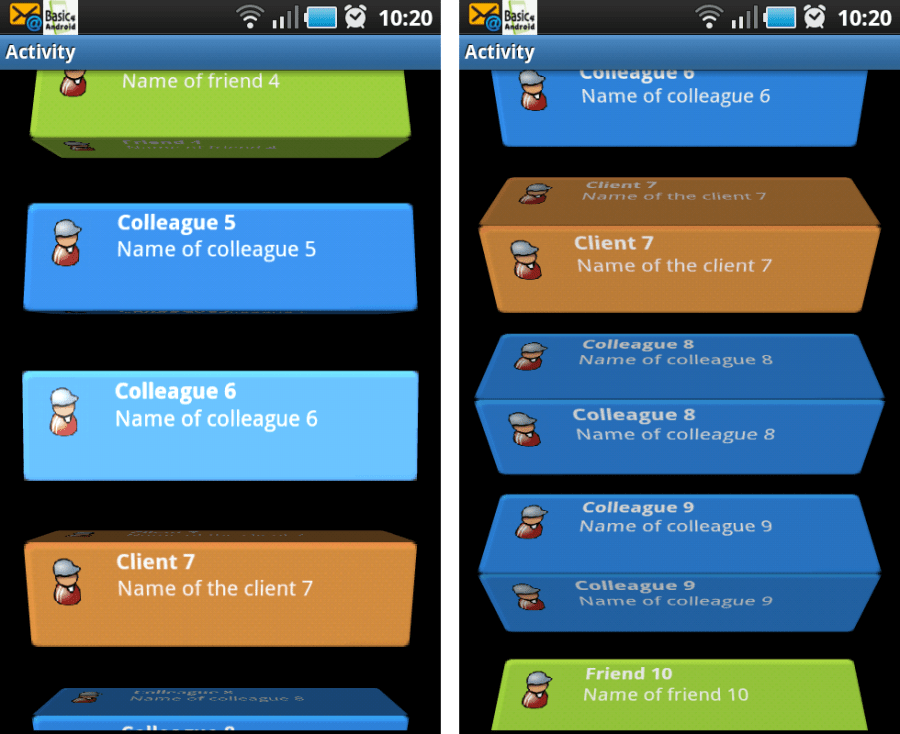
The camera I’m talking about is a nice feature you can use to do 3D effects on the canvas without using OpenGL. The picture above is just a noral B4A canvas where we did some rotations and translations on. It simulates a scrolling list where the listitems rotate around their axe.

Additional, I shows other features of the ABExtDrawing library to do some lighting effects.

Let me show you how this is done in B4A.

We create a new type item3D. This will hold one item in the list.

Sub Process_Globals
	Type item3D (bmp As Bitmap, Top As Int, Left As Int, Width As Int, Height As Int)
End Sub

We also have to declare some variables. Note our mCamera variable which will do the 3D conversions and some constants for our lighting effects. On a Paint object we can set color filters which will affect the color values of what we draw with that Paint object. SetLightingColorFilter takes care of that. A LightingColorFilter takes two colors that are used to modify the colors that we are drawing. The first color will be multiplied with the colors we draw, while the second one will be added to the colors we draw. The multiplication will darken the color and adding will make it brighter so we can use this class to model both shadows and highlights. It would have been even better if instead of adding it would have implemented the screen blend mode, but add works OK.

To actually calculate the light we’ll use a simplified version of Phong lighting.

Sub Globals
	'These global variables will be redeclared each time the activity is created.
	'These variables can only be accessed from this module.
	Dim items As List
	Dim HalfHeight As Float

	Dim SCALE_DOWN_FACTOR As Float: SCALE_DOWN_FACTOR = 0.15
	Dim DEGREES_PER_SCREEN As Int: DEGREES_PER_SCREEN = 270

	' Ambient light intensity
    Dim AMBIENT_LIGHT As Int: AMBIENT_LIGHT = 55
    ' Diffuse light intensity
    Dim DIFFUSE_LIGHT As Int: DIFFUSE_LIGHT = 200
    ' Specular light intensity
    Dim SPECULAR_LIGHT As Float: SPECULAR_LIGHT = 70
    ' Shininess constant
    Dim SHININESS As Float: SHININESS = 200
    ' The Max intensity of the light
    Dim MAX_INTENSITY As Int: MAX_INTENSITY = 0xFF

	Dim CurrentRotation As Int
	Dim CurrentTop As Int
	Dim MyCanvas As Canvas

	Dim ScreenTop As Int: ScreenTop = 1
	Dim Panel1 As Panel

	Dim ExDraw As ABExtDrawing
	Dim mCamera As ABCamera
	Dim mMatrix As ABMatrix
	Dim mPaint As ABPaint

	Dim PI As Double: PI= 3.141592653589793238462643383279502884197

	Dim ClearRect As Rect

	Dim CurrY As Int
End Sub

In the Activity_Create sub we initialize mCamera and the other variables like mPaint which we will also need for our lighting. Also our pictures are preloaded.

Sub Activity_Create(FirstTime As Boolean)
	Activity.LoadLayout("1")

	MyCanvas.Initialize(Panel1)

	HalfHeight = Activity.Height / 2

	Dim backbmp As Bitmap
	backbmp.Initialize(File.DirAssets, "background.png")
	Dim backbmp2 As Bitmap
	backbmp2.Initialize(File.DirAssets, "background2.png")
	Dim backbmp3 As Bitmap
	backbmp3.Initialize(File.DirAssets, "background3.png")

	Dim conbmp As Bitmap
	conbmp.Initialize(File.DirAssets, "contact_image.png")
	Dim conbmp2 As Bitmap
	conbmp2.Initialize(File.DirAssets, "contact_image2.png")
	Dim conbmp3 As Bitmap
	conbmp3.Initialize(File.DirAssets, "contact_image3.png")

	items.Initialize
	Dim i As Int
	Dim random As Int
	For i = 0 To 19
		random = Rnd(0,3)
		If random = 0 Then
			items.Add(CreateNewItem(backbmp, conbmp, "Colleague " & i, "Name of colleague " & i, 25, i*175, Activity.Width - 50, 120))
		Else
			If random = 1 Then
				items.Add(CreateNewItem(backbmp2, conbmp2, "Friend " & i, "Name of friend " & i, 25, i*175, Activity.Width - 50, 120))
			Else
				items.Add(CreateNewItem(backbmp3, conbmp3, "Client " & i, "Name of the client " & i, 25, i*175, Activity.Width - 50, 120))
			End If
		End If
	Next

	CurrentRotation = -(DEGREES_PER_SCREEN * ScreenTop) / Activity.Height

	ClearRect.Initialize(0,0,Activity.Width, Activity.Height)

	mCamera.Initialize
	mMatrix.Initialize
	mPaint.Initialize
	mPaint.SetAntiAlias(True)
    mPaint.SetFilterBitmap(True)

	DrawMe
End Sub

The sub CreateNewItem() is used to make one list item. Default B4A canvas drawing functions are used to show how well they work together with the ABExtDrawing functions.

Sub CreateNewItem(Background As Bitmap, icon As Bitmap, Subj As String, desc As String, Left As Int, Top As Int, Width As Int, Height As Int) As item3D
	Dim item As item3D
	Dim c As Canvas
	item.Initialize
	item.bmp.InitializeMutable(Width, Height)

	c.Initialize2(item.bmp)

	' background
	Dim dstR As Rect
	dstR.Initialize(0,0,Width,Height)
	c.DrawBitmap(Background,Null, dstR)

	' draw Icon
	dstR.Initialize(15,15, icon.Width, icon.Height)
	c.DrawBitmap(icon, Null, dstR)

	c.DrawText(Subj, 100, 30,Typeface.DEFAULT_BOLD,16, Colors.White,"LEFT")
	c.DrawText(desc, 100, 60, Typeface.DEFAULT,16, Colors.White,"LEFT")

	item.Top = Top
	item.Left = Left
	item.Width = Width
	item.Height = Height
	Return item
End Sub

In the drawItem() sub all calculations are done for one item in the list. Each item will be a block that will rotate around its X-axis and look like it is rolling on the ground when the list stars to scroll. Each block will be as wide as the item normally is and the depth will be the same as the height. We’ll use the same bitmap for all the sides.

So what do we need to do to achieve this effect? In order to draw the blocks we need to draw the bitmap two times (since we will almost always see two sides of the block). We also need to have some kind of rotation variable to keep track of the main rotation. Since the blocks should rotate when the user scrolls the list and the blocks should have the same rotation (so that they all face up at the same time, see further).

Sub DrawItem(item As item3D)
	Dim CenterX As Float
	Dim CenterY As Float

	' get centerX AND centerY
	CenterX = item.Width / 2
	CenterY = item.Height / 2

    ' get scale
    Dim distFromCenter As Float
	distFromCenter = (item.Top + CenterY - HalfHeight) / HalfHeight
	Dim scale As Float
	scale = (1 - SCALE_DOWN_FACTOR * (1 - Cos(distFromCenter)))

    ' get rotation
    Dim RotationX As Float
	RotationX = CurrentRotation - 20 * distFromCenter
    RotationX = RotationX Mod 90
    If (RotationX < 0) Then
        RotationX = RotationX + 90
    End If	

    ' draw it
    If (RotationX < 45) Then
		drawFace(item, CenterX, CenterY, scale, RotationX - 90)
        drawFace(item, CenterX, CenterY, scale, RotationX)

    Else
        drawFace(item, CenterX, CenterY, scale, RotationX)
        drawFace(item, CenterX, CenterY, scale, RotationX - 90)
    End If
End Sub

Finally, DrawFace is called and this is where the magic happens. Worth noting is that the code that will draw one face of the block is the same, it just depends on the rotation, so it’s extracted to a method. To draw a complete block we then simply draw two faces 90 degrees apart at the same place.

To draw a face we first translate the camera so that the face will be drawn closer to us. Then we rotate it and after that we translate it back so we don’t scale it. Keep in mind that the calls to the camera, just like the rotate, translate and scale methods on Canvas, needs to be written in reversed order, so to speak. In the code below, it is the last line that translates the face towards us, then we rotate it, and finally, with the first line, we translate it back.

mCamera.translate(0, 0, centerY);
mCamera.rotateX(rotation);
mCamera.translate(0, 0, -centerY);

The rest of drawFace is not that hard. It gets the matrix from the camera, pre and post translates the matrix and then draws the bitmap with the matrix.

This code will draw each item as if placed in the origin in 3D space and then we move the items to the correct place on the screen using pre and post translate on the matrix. This moves what we draw in 2D space without changing the perspective. We could apply the translation in X and Y on the camera instead, then the translation would be in 3D space and it would affect the perspective. We’re not doing that here because I want the appearance of a larger field of view than the fixed field of view of the camera. Instead, we fake it by slightly rotating and scaling the items depending on the distance from center of the screen.

We calculate the light and create a LightingColorFilter that we can set to our Paint object.

Sub drawFace(item As item3D, CenterX As Float, CenterY As Float, scale As Float, RotationX As Float)
	' save the camera state
    mCamera.save

    ' translate AND Then rotate the camera
    mCamera.translate(0, 0, CenterY)
    mCamera.rotateX(RotationX)
	mCamera.translate(0, 0, -CenterY)

    ' get the matrix from the camera AND Then restore the camera
    mCamera.getMatrix(mMatrix)
    mCamera.restore()

    ' translate AND scale the matrix
    mMatrix.preTranslate(-CenterX, -CenterY)
    mMatrix.postScale(scale, scale)
    mMatrix.postTranslate(item.left + CenterX, item.top + CenterY)

    ' set the light
	Dim cosRotation As Double
	cosRotation = Cos(PI * RotationX / 180)
    Dim intensity As Int
	intensity = AMBIENT_LIGHT + (DIFFUSE_LIGHT * cosRotation)
    Dim highlightIntensity As Int
	highlightIntensity = (SPECULAR_LIGHT * Power(cosRotation,SHININESS))
    If (intensity > MAX_INTENSITY) Then
        intensity = MAX_INTENSITY
    End If
    If (highlightIntensity > MAX_INTENSITY) Then
        highlightIntensity = MAX_INTENSITY
    End If
    Dim light As Int
	light = Colors.rgb(intensity, intensity, intensity)
    Dim highlight As Int
	highlight = Colors.rgb(highlightIntensity, highlightIntensity, highlightIntensity)
    mPaint.SetLightingColorFilter(light, highlight)   

    ' draw the Bitmap
    ExDraw.drawBitmap4(MyCanvas, item.bmp,  mMatrix, mPaint)
End Sub

The DrawMe() sub is the overall function to draw all the items.

Sub DrawMe()
	Dim i As Int
	ExDraw.save2(MyCanvas, ExDraw.MATRIX_SAVE_FLAG)
	MyCanvas.DrawRect(ClearRect, Colors.Black, True, 1dip)
	'MyCanvas.DrawBitmap(FormBack, Null, formR)
	For i = 0 To items.Size - 1
		DrawItem(items.Get(i))
	Next
	ExDraw.restore(MyCanvas)

	Panel1.Invalidate
End Sub

And in the Panel1_Touch sub we’ll animate our list. Note that it is here that we make sure all boxes face the same. This is done by the lines:

ScreenTop = ScreenTop + DeltaY
CurrentRotation = -(DEGREES_PER_SCREEN * ScreenTop) / Activity.Height

Doing like this will make the blocks rotate DEGREES_PER_SCREEN degrees when the user scrolls the list an entire screen no matter the pixel-height of the screen.

Here is the full sub:

Sub Panel1_Touch (Action As Int, X As Float, Y As Float) As Boolean 'Return True to consume the event
	Dim DeltaY As Int
	Select Action
        Case Activity.ACTION_DOWN
			CurrY = Y
            'Log("down")
        Case Activity.ACTION_MOVE
			DeltaY = Y - CurrY
			CurrY = Y
			Dim i As Int
			Dim it As item3D
			For i = 0 To items.Size - 1
				it = items.Get(i)
				it.Top = it.Top + DeltaY
				items.Set(i, it)
			Next

			ScreenTop = ScreenTop + DeltaY
			CurrentRotation = -(DEGREES_PER_SCREEN * ScreenTop) / Activity.Height

			DrawMe
            'Log("move")
        Case Activity.ACTION_UP
            'Log("up")
    End Select
    Return True
End Sub

So this concludes this tutorial. You can download the project from http://www.gorgeousapps.com/AB3DCamera.zip

Note that at the first run, it may not work very smooth on some devices. But after some time it goes very well.

Have fun programming and until next time!

Click here to Donation if you like my work
Basic4Android: new library ABExtDrawing

ABExtDrawing is a library I wrote to access more from the Android Drawing classes in B4A. It extends the B4A canvas so you can also use all Paint, Matrix, Region, ColorMatrix and Path functionalities.

Several sub objects are included:
ABPaint: a wrapper for thePaint class
ABMatrix: a wrapper for the Matrix class
ABRegion: a wrapper for the Region class
ABColorMatrix: a wrapper for the ColorMatrix class
ABRgbFunctions: several functions to manipulate RGB values

Also two extended classes
ABRectF: a wrapper around the RectF class. B4A contains the Rect class, but to use some of the functions of this library I needed the float version of Rect.
ABPath: a full wrapper for the Path class. B4A contains the Path class but only exposes LineTo. ABPath exposes all functions (like addArc, addOval, etc…)

This library is to big to list all the functions, but a lot of them are used in the attached demo. It is a B4A translation of the Thermometer project on Mind The Robot http://mindtherobot.com/blog/272/android-custom-ui-making-a-vintage-thermometer/

How to use this library:

The main object is ABExtDrawing. You pass the B4A canvas to each function:

Sub Globals
        Dim ExDraw As ABExtDrawing
        Dim MyCanvas As Canvas
        Dim Panel1 as Panel
end Sub

Sub Activity_Create(FirstTime As Boolean)
        If FirstTime Then
		Activity.LoadLayout(&quot;2&quot;)
		MyCanvas.Initialize(Panel1)
	End If
        drawRim(MyCanvas)
End Sub

Sub drawRim(Canv As Canvas)
	' first, draw the metallic body
	ExDraw.drawOval(Canv, rimRect, rimPaint)
	' now the outer rim circle
	ExDraw.drawOval(Canv, rimRect, rimCirclePaint)
End Sub

The fun part is you can create all kind of Paints:

        ' the linear gradient Is a Bit skewed For realism
	rimPaint.Initialize
	rimPaint.SetFlags(rimPaint.flag_ANTI_ALIAS_FLAG)
	rimPaint.SetLinearGradient2(1,0.40, 0.0, 0.60, 1.0, Colors.RGB(0xf0, 0xf5, 0xf0),Colors.RGB(0x30, 0x31, 0x30),rimPaint.ShaderTileMode_CLAMP)
	rimPaint.DoShaderSingle(1)

	rimCirclePaint.Initialize
	rimCirclePaint.SetAntiAlias(True)
	rimCirclePaint.SetStyle(rimCirclePaint.Style_STROKE)
	rimCirclePaint.SetColor(Colors.ARGB(0x4f, 0x33, 0x36, 0x33))
	rimCirclePaint.SetStrokeWidth(0.005)

Or make extended Paths:

        handPath.Initialize
	handPath.moveTo(0.5, 0.5 + 0.2)
	handPath.lineTo(0.5 - 0.010, 0.5 + 0.2 - 0.007)
	handPath.lineTo(0.5 - 0.002, 0.5 - 0.32)
	handPath.lineTo(0.5 + 0.002, 0.5 - 0.32)
	handPath.lineTo(0.5 + 0.010, 0.5 + 0.2 - 0.007)
	handPath.lineTo(0.5, 0.5 + 0.2)
	handPath.addCircle(0.5, 0.5, 0.025, handPath.Direction_CW)

You can also use the Save and Restore functions of the canvas:

Sub drawScale(Canv As Canvas)
	ExDraw.drawOval(Canv, scaleRect, ScalePaint)

	ExDraw.save2(Canv, ExDraw.MATRIX_SAVE_FLAG)
	Dim i As Int
	Dim y1 As Float
	Dim y2 As Float
	Dim value As Int
	Dim valueString As String
	For i = 0 To totalNicks
		y1 = scaleRect.top
		y2 = y1 - 0.020

		ExDraw.drawLine(Canv, 0.5, y1, 0.5, y2, ScalePaint)

		If (i Mod 5 = 0) Then
			value = nickToDegree(i)
			If (value &gt;= minDegrees AND value &lt;= maxDegrees) Then
				valueString = value
				ExDraw.drawText(Canv, valueString, 0.5, y2 - 0.015, ScalePaint)
			End If
		End If

		ExDraw.rotate2(Canv, degreesPerNick, 0.5, 0.5)
	Next
	ExDraw.restore(Canv)
End Sub

And write filters like this GreyScale filter:

Sub GrayScale(bmp As Bitmap) As Bitmap
    Dim bmpGrayscale As Bitmap
    bmpGrayscale.InitializeMutable(bmp.Width, bmp.height)
    Dim c As Canvas
    c.Initialize2(bmpGrayscale)

    Dim paint As ABPaint
    paint.Initialize

    Dim mat As ABColorMatrix
    mat.Initialize
    mat.SetSaturation(0)

    paint.SetColorMatrixColorFilter2(mat)

    ExDraw.drawBitmap2(c, bmp, 0, 0, paint)

    Return bmpGrayscale
End Sub

Because of all the possibilities this library has, I may do some more articles on this blog.

For more information on what you can do with the library, look into the Android Documentation http://developer.android.com/reference/android/graphics/Canvas.html

As a registered user, you can download the library from the Basic4Android website
The demo project can be downloaded from http://www.gorgeousapps.com/ABExtDrawingDemo.zip

Click here to Donation if you like my work

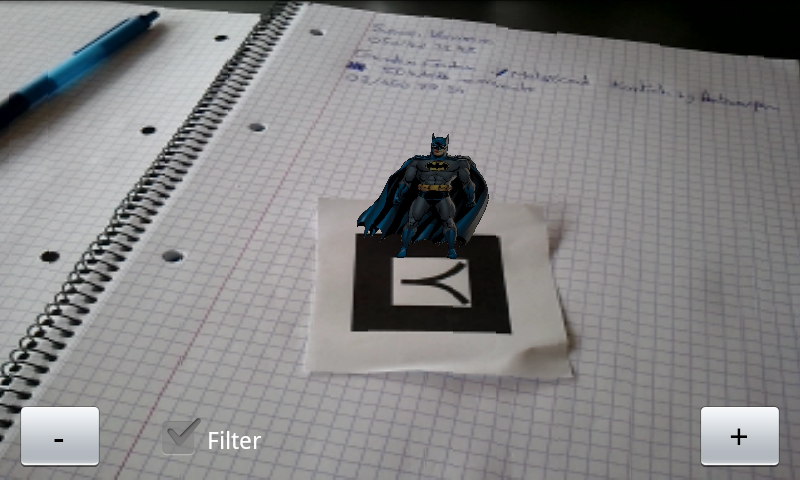
Augmented Reality: bring out the Bat-Signal!

After playing around with AR, I’ve decided to make a B4A library from an existing AR library: NyARToolkit (http://nyatla.jp/nyartoolkit/).

Some functions did not work properly and I had to rewrite some of them so they could fit in a B4A library. I also wanted to use the GLSurfaceView from Andrew Graham in basic4android. To do this, I had to extract everything that had to do with 3D and OpenGL. It took some fiddling around, but I think I cracked it.

With a couple of lines in b4a, I can now find the markers and put a 3D model on top of it. The speed and accuracy of the NyARToolkit is ok and it is certainly possible to make some fun projects.

Just to play around, I’ve put one of my favorite superheroes on top of the marker. Batman to the rescue!

Example of the code needed to get the markers:

Sub ABAR_MarkersFound()
	
	Dim Vect As ABARVector2D
	Dim a As Int
	Dim b As Int
	Dim Markers As List
	Markers.Initialize
	Markers = ABAR.GetMarkers()
	Dim corners As List
	corners.Initialize
	Dim Msg As String
	
	FoundMarkers = markers.Size - 1
	For a = 0 To foundMarkers
		
		Mark = Markers.Get(a)
		conf(a) = Mark.Confidence
	
		counter = 0
		Msg = "Marker: " & Mark.ARCodeIndex & CRLF
		Msg = Msg & "x:" & Mark.Center.x & " y:" & Mark.Center.y & CRLF
		Msg = Msg & "Confedence:" & Mark.Confidence & CRLF
		Corners = Mark.Corners
		Vect = Corners.Get(0)
		Msg = Msg & "Corner1=x:" & vect.x & "y:" & vect.y & CRLF
		Vect = Corners.Get(1)
		Msg = Msg & "Corner2=x:" & vect.x & "y:" & vect.y & CRLF
		Vect = Corners.Get(2)
		Msg = Msg & "Corner3=x:" & vect.x & "y:" & vect.y & CRLF
		Vect = Corners.Get(3)
		Msg = Msg & "Corner4=x:" & vect.x & "y:" & vect.y & CRLF
		Markfound = True
		For b = 0 To 15
			tmpresultf(a,b) = Mark.resultf(b)
			tmpcameraRHf(b) = Mark.cameraRHf(b)
		Next
		Msg = Msg & CRLF
			
		useRHfp = True
		drawp = True

		Log(Msg)		
	Next
	glsv.RequestRender
End Sub

Augmented Reality: Taking away the rainbow

For the Augmented Reality project, I’ll need to grayscale the image.

There are 3 types of grayscaling available in the class but the one I’ll need will be BT709. It turns out it gives the best results for searching glyphs.

It’s a simple conversion but already we have something to take into account when we use Java: the byte type. A byte in java has a value of -128 to 127 instead of 0 to 255. Therefor we will need to do & 0xFF when we return the grayscaled bitmap.

I’ll have to remember this for future calculations on the imageData array!

Here is the class. De imageData is kept in memory as I’ll need those pixels anyway to do the next step: Edge detection!

// Copyright © Alain Bailleul, Alwaysbusy's Corner 2011
//
// Grayscale type values from:
//
// AForge Image Processing Library
// AForge.NET framework
// http://www.aforgenet.com/framework/

import android.graphics.Bitmap;
import android.graphics.Color;

public static class ABImage
{
    //data that will contain the grayscaled pixels
    public byte[] imageData;
    public int width=0;
    public int height=0;
    private double RedCoefficient;
    private double GreenCoefficient;
    private double BlueCoefficient;

    //3 types of grayscaling
    public void SetGrayscaleBT709() {
        RedCoefficient   = 0.2125;
        GreenCoefficient = 0.7154;
        BlueCoefficient  = 0.0721;
    }

    public void SetGrayscaleRMY() {
        RedCoefficient   = 0.5000;
        GreenCoefficient = 0.4190;
        BlueCoefficient  = 0.0810;
    }

    public void SetGrayscaleY() {
        RedCoefficient   = 0.2990;
        GreenCoefficient = 0.5870;
        BlueCoefficient  = 0.1140;
    }

    // create a 8 bit byte array with the pixels of the grayscaled image
    public void FromBitmap( Bitmap image )
    {
        width = image.getWidth();
        height = image.getHeight();

        int[] pixelData = new int[width * height];
        int i = 0;

        image.getPixels(pixelData, 0,width, 0, 0, width, height);

        for (int pixeldatai: pixelData)
        {
             imageData[i++] = (byte) ( RedCoefficient * Color.red(pixeldatai)
                                    + GreenCoefficient * Color.green(pixeldatai)
                                    + BlueCoefficient * Color.blue(pixeldatai));
        }
    }

    //return the grayscale byte array back to a 32 bit bitmap
    public Bitmap ToBitmap()
    {
        int[] pixelData = new int[width * height];
        int i=0;

        for (byte imageDatai: imageData)
        {
            pixelData[i++] = ((255 & 0xFF) << 24) | //alpha
                ((imageDatai & 0xFF) << 16) | //red
                ((imageDatai & 0xFF) << 8 )  | //green
                ((imageDatai & 0xFF) << 0 ); //blue
            }
        return Bitmap.createBitmap(pixelData, width, height, Bitmap.Config.ARGB_8888);
    }
}

Tricking B4A and Java to do byref. How about that!

Neither B4A nor Java support byref arguments nativily. Or do they?

By using this simple trick, you can mimic byref by exploiting their hidden pointer potential.

In Java:

private void Test() {
   //declare the byref value as an array with size 1
   String[] value = new String[1];
   //passing an array is not passing the whole array, but a pointer
   ByrefTest(value);
   //Et voila! the changed value
   System.out.print(value[0]);
}

private void ByrefTest(String rValue[]) {
   // using the pointer, B4A fills the string with our value
   rValue[0] = "Changed in the function!";
}

In B4A:

Sub Activity_Create(FirstTime As Boolean)
   ' dim the byref value as an array with size 1
   Dim value(1) As String
   ' passing an array is not passing the whole array, but a pointer
   ByrefTest(Value)
   ' Et voila! the changed value
   Msgbox( value(0), "")
End Sub

Sub ByrefTest(rValue() As String)
   ' using the pointer, B4A fills the string with our value
   rValue(0) = "Changed in the function!"
End Sub

This will come in handy when I convert some AForge.NET c# code to java, I’m sure!